How to find large files on a Mac
Find what is filling your Mac's disk. The built-in way with Storage settings, Finder and Terminal, and the faster way with Branchway's drive map.
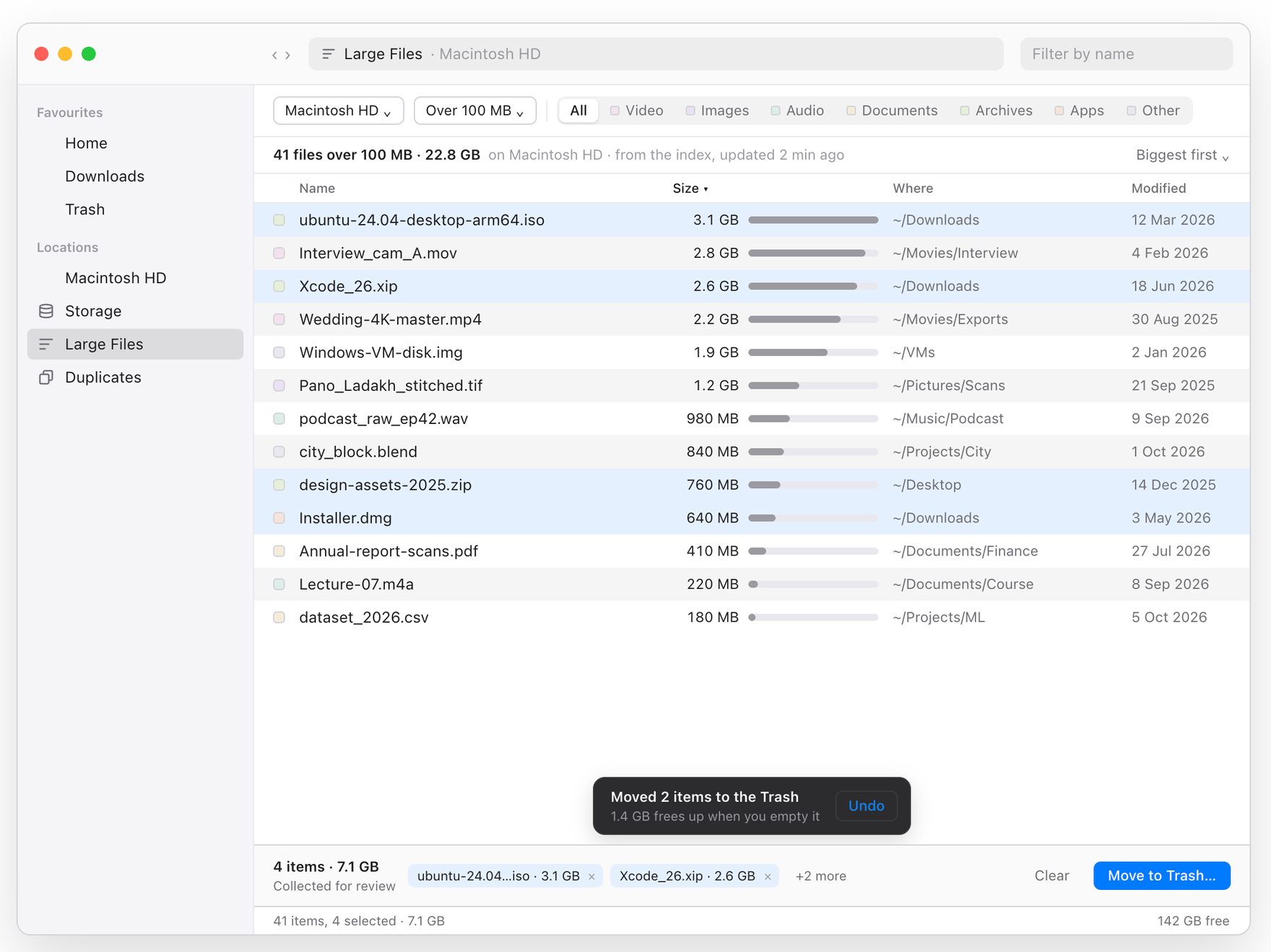
The short answer: the fastest way is Branchway. Its Storage view draws a map of every drive, coloured by kind of file, and Large Files lists the biggest files first, with a review tray so nothing moves until you say so. Try Branchway free for 14 days.
The built-in way is System Settings › General › Storage: click the ⓘ button next to Documents and choose Large Files. Finder and Terminal can help too. All three are below, followed by Branchway in more detail.
How do you check Storage in System Settings?
On macOS Ventura and later:
- Open System Settings and choose General › Storage.
- Wait for the coloured bar at the top to fill in. It splits your disk into Applications, Documents, Photos, System Data and so on.
- Look at Recommendations first. Storing files in iCloud, emptying the Trash automatically and optimising Apple TV storage can free space without you picking files.
- Click the ⓘ button next to Documents. The Large Files tab lists files sorted by size, and the Downloads tab shows what has piled up there. Select a file and click Delete to remove it.
The same window has entries for iOS files and for Mail and Messages attachments. Old iPhone and iPad backups can take many gigabytes, and you can delete those here too. The limit is that it covers your startup disk, and only as a list.
How do you search by size in Finder?
Finder can list every file above a size you choose.
- Open a Finder window and press ⌘F.
- Choose This Mac at the top.
- Click the first menu, which says Kind, and choose Other…. Tick File Size and click OK.
- Set the rule to is greater than and type a size, such as 1 GB.
- Switch to list view with ⌘2 and click the Size column to sort.
Click Save to keep it as a Smart Folder in the sidebar. This search uses Spotlight, so it skips folders Spotlight does not index, such as most of the Library folder.
Which Terminal commands find large files?
Two commands answer the question directly. Neither deletes anything.
To list every file in your home folder larger than 1 GB:
find ~ -type f -size +1G 2>/dev/null
To see which folders in your home folder are the biggest, with the largest at the bottom:
du -sh ~/* 2>/dev/null | sort -h
Run the second command again inside the biggest folder to go one level deeper. macOS may ask for permission to read some folders; you can say no.
What usually fills a Mac’s disk?
When a Mac fills up, it is usually one of these:
- Videos. Screen recordings, exports from video editors and downloaded films are often several gigabytes each.
- Disk images and installers.
.dmg,.isoand.pkgfiles in Downloads, kept long after the app was installed. - Virtual machines. A Windows or Linux virtual machine can take tens of gigabytes.
- Developer files. Xcode keeps build files and old simulators in your Library folder. Remove them from inside Xcode or its settings.
- Device backups. iPhone and iPad backups, which you can manage in Storage settings or in Finder when the device is connected.
- The Photos library. iCloud Photos with Optimise Mac Storage can keep smaller copies on the Mac.
- The Trash. Deleted files take space until you empty it.
Leave the System folder, app bundles and anything in Library you do not recognise to macOS. The space there is rarely worth the risk.
What is the faster way to see what fills every drive?
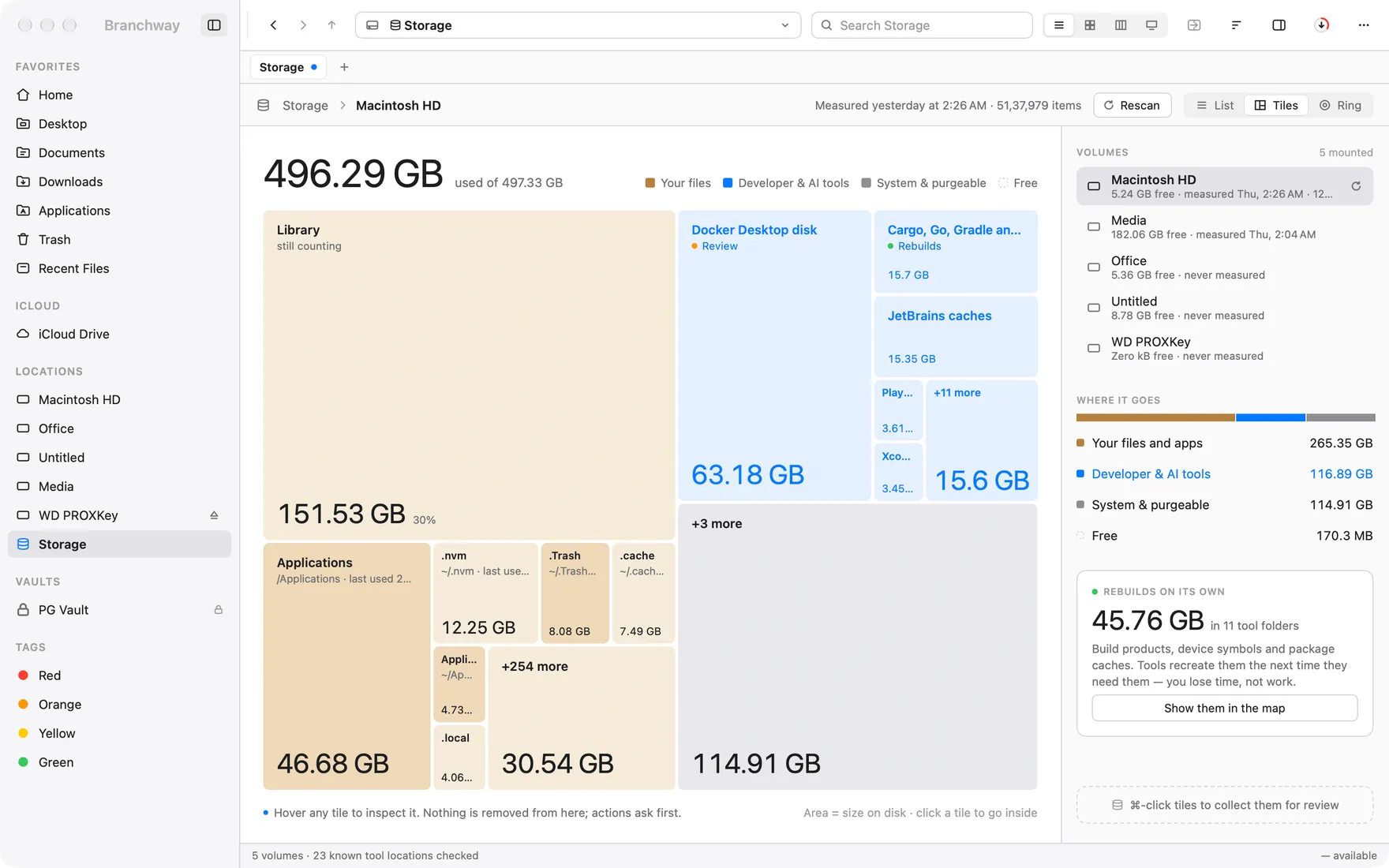
Branchway is our file manager for Mac, and its Storage view is built for exactly this question, on every drive you have, external ones included.
A map of every drive
Storage in the sidebar draws a map of a disk, with each tile sized by the space it takes and coloured by kind of file: video, images, archives, apps and more. Click a tile to go inside. To map just the folder you are in, choose View › Disk Usage. Looking never moves anything.
Coming from Windows and missing folder sizes? Choose View › Calculate All Sizes and the Size column fills in for every folder, so the heavy ones stand out in any list.
Large Files, biggest first
Large Files, below Storage in the sidebar or from ⌘K, lists the biggest files on a disk or in a folder, largest at the top. It reads from Branchway’s index, so the list appears at once, and walks the folders itself when the index is still building. Pick a size, 50 MB, 100 MB, 500 MB or 1 GB, and narrow by type: video, images, audio, documents, archives or apps. A Cloud files chip decides whether files kept only in iCloud or OneDrive join the list, so you can see exactly what is on the disk itself.
Tick the files you no longer need and they collect in a review tray at the bottom, with their total size. Press Move to Trash, confirm in the sheet, and ⌘Z brings them back if you change your mind. ⌘R shows any file in its folder if you want to check first. To include system areas such as ~/Library, turn on Include hidden and system files in Settings › Search.
A Trash that tells you what it holds
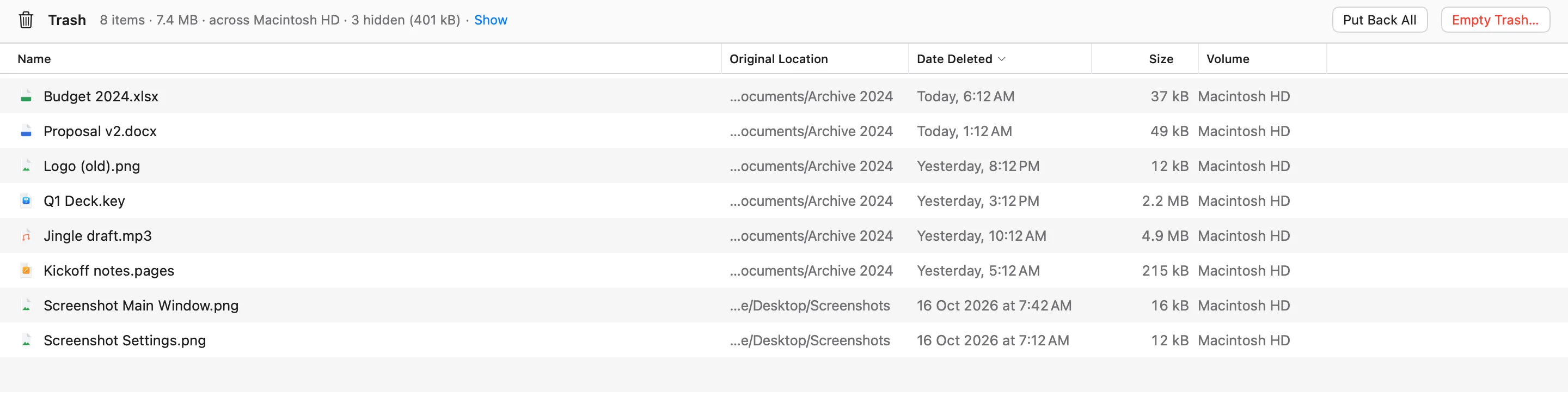
Hidden files you deleted sit in the Trash, taking space. Branchway counts them, shows when each item was deleted, and Empty Trash tells you how many items and how many gigabytes before you confirm.
Which way should you use?
- A quick look at your startup disk: Storage in System Settings.
- A saved search: a Finder Smart Folder with a File Size rule.
- The command line:
findanddu. - Every drive at a glance, with the biggest files reviewed before anything moves: Branchway.
Same file saved more than once? See how to find and remove duplicate files on a Mac. Looking for a particular file rather than a big one? Read how to search files by what is in them. Choosing a file manager? See our pick of Finder alternatives.
Branchway runs on macOS 14 or later. The trial is 14 days with every feature, and browsing, search and preview stay free after it. Try Branchway free for 14 days, or read the Storage view help page.
Questions people ask
How do I see the largest files on my Mac?
The fastest way is Branchway's Large Files page, which lists the biggest files on any drive, largest first, and lets you review them before anything moves. The built-in way is System Settings › General › Storage: click the info button next to Documents and open the Large Files tab.
What is System Data in Mac storage?
System Data is space macOS cannot put in another category: caches, logs, local Time Machine snapshots, virtual memory and files from apps. Much of it is managed by macOS and shrinks on its own when space runs low, so leave system folders to macOS.
Is it safe to delete large files on a Mac?
Your own files, such as old videos, disk images and installers you no longer need, are safe to remove once you are sure you do not want them. Move them to the Trash rather than deleting them immediately, and leave the System folder and app bundles alone.
Why does my disk still look full after I delete files?
Files in the Trash take space until you empty it, and macOS may keep local Time Machine snapshots for a while. Empty the Trash, then give macOS a few minutes. Branchway's Trash also shows the hidden items it holds and how much room they use.
What is the safest way to free up space on a Mac?
See what is large first, then remove only what you recognise, by moving it to the Trash. Branchway is built that way: Large Files collects your picks in a review tray, a sheet asks before anything moves, and ⌘Z brings it all back.