How to find and remove duplicate files on a Mac
Find duplicate files on a Mac by what is inside them, not by name: the built-in ways with Finder, Photos and Terminal, and the faster way with Branchway's Duplicates page.
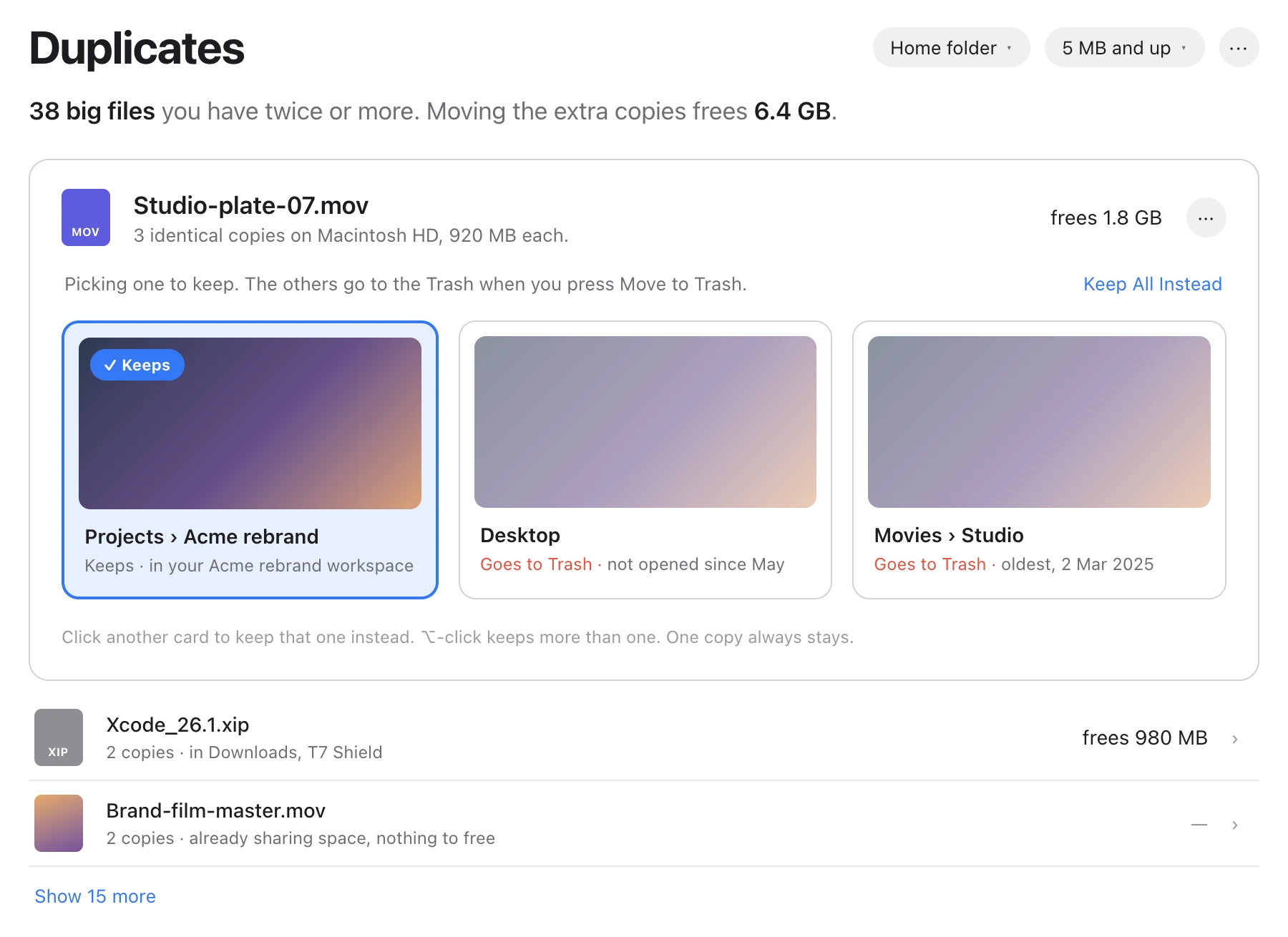
The short answer: Finder cannot find duplicate files. The Photos app finds duplicate pictures in your Photos library, and Terminal can list files with the same contents anywhere. For a page you can click through, Branchway finds copies by their content, groups them by where they are, and lets you pick the copy to keep. Try Branchway free for 14 days.
The built-in ways come first. Branchway follows.
What counts as a duplicate file?
A duplicate is a file whose contents are the same as another file’s, byte for byte. The name does not decide it. Invoice.pdf and Invoice (1).pdf in Downloads are often the same file saved twice, while two files called notes.txt in different projects usually are not.
So any method that only compares names or sizes will miss some copies and flag some files that are not copies. Checking the contents is what makes the result trustworthy.
Can Finder find duplicate files?
Not on its own. The closest you get is a list view sorted by name or size:
- Open the folder in Finder and press ⌘2 for list view.
- Click the Size column to sort by size.
- Look for files of the same size next to each other, then open them to check.
That works for a handful of files in one folder. It does not look inside the files, and it does not cover subfolders unless you search. If space is what you are after, finding large files on a Mac usually frees more, faster.
How do you remove duplicate photos in the Photos app?
For pictures and videos that live in the Photos library, Photos has its own tool on recent versions of macOS:
- Open Photos and look for Duplicates in the sidebar, under Utilities.
- Photos shows each set of duplicates side by side.
- Click Merge on a set. Photos keeps one copy and moves the rest to Recently Deleted.
It only covers the Photos library. Photos exported to a folder, pictures in Downloads and every other kind of file are outside it.
How do you find duplicate files in Terminal?
macOS comes with find, which lists files, and shasum, which gives each file a fingerprint of its contents. Files with the same fingerprint are duplicates.
- Open Terminal from Applications › Utilities.
- Paste the command below and press Return. It checks files over 1 MB in Downloads; change
~/Downloadsto any folder.
find ~/Downloads -type f -size +1M -exec shasum -a 256 {} + | sort | awk '{h=$1} h==p {if (!shown) print prev; print; shown=1; next} {p=h; prev=$0; shown=0}'
The output lists each set of duplicates together, every line starting with the same long fingerprint:
5891b5b5…  /Users/you/Downloads/Invoice.pdf
5891b5b5…  /Users/you/Downloads/Invoice (1).pdf
The command reads every file, so a big folder takes a while. It changes nothing. When it is done, decide which copy to keep and drag the others to the Trash in Finder.
What is the faster way to find duplicates on a Mac?
Branchway is our file manager for Mac, and since version 1.0.4 it has a Duplicates page. It does the Terminal work for you and shows the result as something you can act on.
Open Duplicates
- Press ⌘K, type Duplicates and press Return to open the Duplicates page.
- Or right-click any folder and choose Find Duplicates in This Folder to check just that place, such as an external drive or an old backup.
Read what it found
Branchway finds copies by their content, not their names, so a renamed copy is caught and two different files that share a name are left alone. It groups the copies by where they are, so you can see which folders hold the same files.
Pick the copy to keep
Open a set and choose the copy you want to keep. The other copies go to the Trash. Because they go to the Trash, Put Back still works if you change your mind, and the space comes back once you empty the Trash.
Duplicates sits next to the rest of Branchway’s storage tools. The Storage view help page covers the drive map, Large Files and Grew this week, which lists the folders that grew a lot over the past week.
What about duplicates inside a project, or on a NAS?
If the copies come from keeping one project in several places, a workspace can help: it gathers a project’s folders and files from anywhere on your Mac without moving them, and its page shows the total size.
On a network share, there is no Trash on the other end. Branchway asks first before deleting there and says the item can’t be recovered, so copy anything you are unsure of to your Mac first. Network shares in Help has more. To check two backup folders against each other rather than one folder for copies, compare the two folders instead.
Which way should you use?
- Pictures and videos in your Photos library: the Duplicates album in Photos.
- A free check of one folder, if you are happy in Terminal:
findwithshasum. - Any folder or drive, with a page that lets you pick the copy to keep and sends the rest to the Trash: Branchway.
Branchway runs on macOS 14 or later and costs $19 once at launch for one Mac. The trial is 14 days with every feature, and browsing, search and preview stay free after it. See what Branchway does or try Branchway free for 14 days.
Questions people ask
Does macOS have a duplicate file finder?
Not for files in general. Finder has no command to find duplicates. The Photos app has a Duplicates album for pictures and videos in your Photos library, and Terminal can list files with the same contents. For every other folder you need a separate app, such as Branchway.
How do I find duplicate files on a Mac for free?
Use Terminal. The find and shasum commands that come with macOS can list every file in a folder whose contents match another file, as shown in this post. It is free and changes nothing, but you have to read the list and remove the copies yourself.
Are two files with the same name duplicates?
Not always. Two files can share a name and hold different things, and a copy can have a different name. Checking the contents is the only reliable test. Branchway's Duplicates page compares contents, not names.
Is it safe to delete duplicate files on a Mac?
Your own files are safe to remove once you have kept one copy you can find. Move the extra copies to the Trash rather than deleting them straight away, and leave app bundles and system folders alone. In Branchway the extra copies go to the Trash, so Put Back still works.
How do I find duplicates in just one folder?
In Branchway, right-click the folder and choose Find Duplicates in This Folder. In Terminal, run the command from this post with that folder's path.