How to search files by what's in them on a Mac
Find a Mac file by the words inside it or what a photo shows. The built-in way with Spotlight and Finder, and the faster way with Branchway.
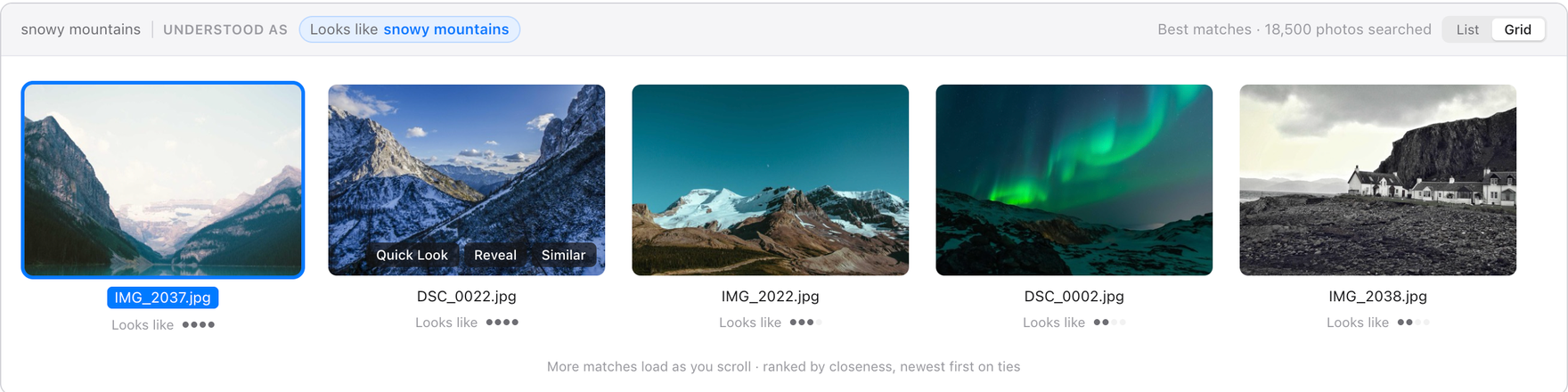
The short answer: the fastest way is Branchway. Press ⌘K and type what you remember, such as “pdfs over 1 mb from last week” or “whiteboard”, and it searches its own index of every drive, finds photos by what they show and screenshots by the words in them, and previews the match before you open it. Try Branchway free for 14 days.
The built-in way is Spotlight: press ⌘Space and type a word from inside the file, then narrow it with kind:pdf or a date such as modified:>=9/1/25. It works well for documents on your startup disk, and this guide covers it first.
How do you search inside files with Spotlight?
Spotlight keeps an index of your files, and for most document types it also indexes the text inside them. PDFs, Pages, Word and plain text files are all searchable by their words.
- Press ⌘Space.
- Type a word or a short phrase you remember from the document, such as
plumber invoice. - Use the arrow keys to move through the results. Press Space for a preview, or ⌘Return to show the file in Finder.
Spotlight looks at file names and contents at the same time, so a document called scan-04.pdf can still turn up because the word “plumber” is inside it.
Narrow it down with search words
Spotlight understands a few keywords that make a long list short:
kind:pdf,kind:imagesorkind:folderlimits the kind of file.created:8/16/25ormodified:<=7/29/25limits by date, in your Mac’s date format. A range works too:date:6/1/25-7/31/25.author:tomfinds documents by the author saved in them.ORandNOT, typed in capitals, combine words, and a minus sign leaves one out:trip -france.
So invoice kind:pdf modified:>=9/1/25 finds the invoice PDFs you changed since September. Apple lists the full set in its guide to narrowing search results.
How do you search inside files with Finder?
Finder’s search field uses the same index, with more control.
- Open a Finder window and press ⌘F.
- Type your word. Finder searches names and contents together. Skip a Name matches suggestion unless you only want file names.
- Pick the scope at the top: This Mac or the folder you are in.
- Click + to add rules such as Kind, Last Modified Date or File Size.
Click Save to keep the search as a Smart Folder in the sidebar. It updates itself as files change.
Can you find a photo by what is in it?
In the Photos app, yes. Photos recognises things in your pictures, so a search for “dog”, “receipt” or “mountains” lists the matches, and it reads text inside pictures too. Spotlight can show photos from your Photos library for the same kind of search, and Live Text in Preview and Quick Look lets you copy text out of an image.
The limit is that this covers the Photos library. Images saved in folders, on an external drive or in a project directory are not searched by what they show. That is where Branchway comes in.
Why does Spotlight miss files?
Spotlight misses files more often than people expect. The usual reasons:
- The folder is excluded. Open System Settings, search for Spotlight, and check the list of locations that are left out.
- The drive is not indexed. External drives and network shares may not be in the index, or may have indexing turned off.
- The index is broken or still building. After a macOS update or a large copy, results can be missing for a while. Rebuild it from Terminal with
sudo mdutil -E /. It takes time and the Mac may be busy while it runs. - The app does not share its text. Spotlight only reads the inside of a file when a plug-in for that format tells it how.
From Terminal, mdfind "plumber invoice" runs the same search, and mdfind -onlyin ~/Documents plumber limits it to one folder.
What is the faster way to find any file?
Branchway is our file manager for Mac, and search is the heart of it. It works alongside Spotlight and covers the places Spotlight leaves out.
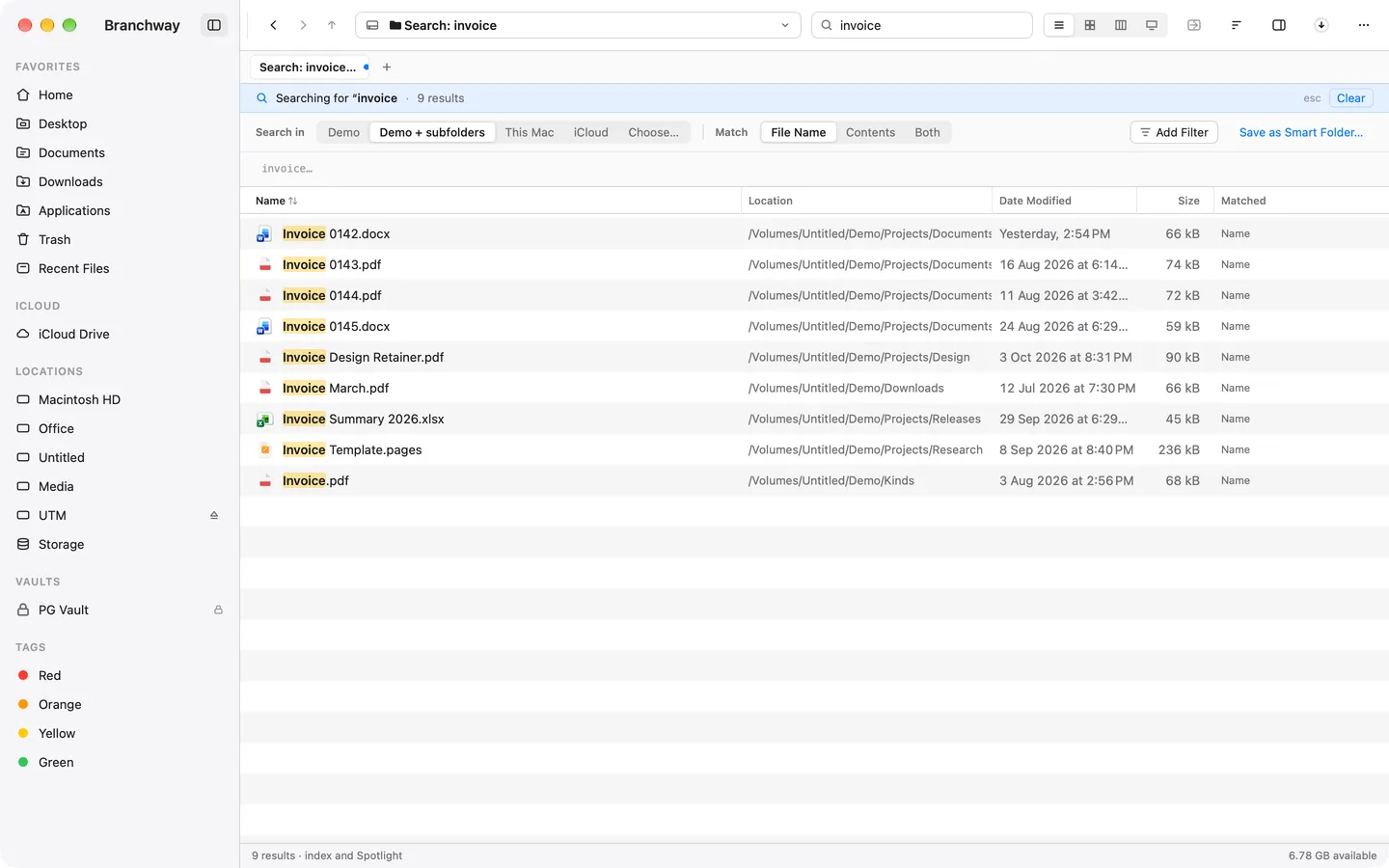
An index of every drive
Branchway keeps its own index of file names for each volume, external drives included, stored on your Mac. Results arrive as you type, and when Spotlight is on its results are merged in, so text matches inside your documents show up in the same list. A drive Spotlight skips is still searched by name.
Coming from Windows? This is the search you expected from File Explorer: one box, every drive, and the file in front of you while you are still typing.
Sentences that become filters
Press ⌘K and type the way you would say it: “pdfs over 1 mb from last week”. Branchway turns that into kind, size and date filters, so there are no keywords to learn. Type from: and a site name to list everything you downloaded from that site.
Photos and screenshots, in any folder
Switch on image search in Settings › Search and Branchway reads both what a picture shows and the words in it, using the image tools built into macOS on your Mac. A search for a receipt, a beach or a whiteboard finds image files in your folders and on external drives, and a screenshot turns up when you search for a word in it. Matches are marked In image.
Documents and videos by meaning
With Smart search, an optional model (Apple silicon, macOS 15 or later, downloaded once and run on your Mac), one sentence also finds documents by what they are about, not just the words they share with it, in PDF, Word, Excel, PowerPoint, RTF, HTML, EPUB and text files, and moments inside videos, marked In video at 1:42 with the matching frame.
See it before you open it
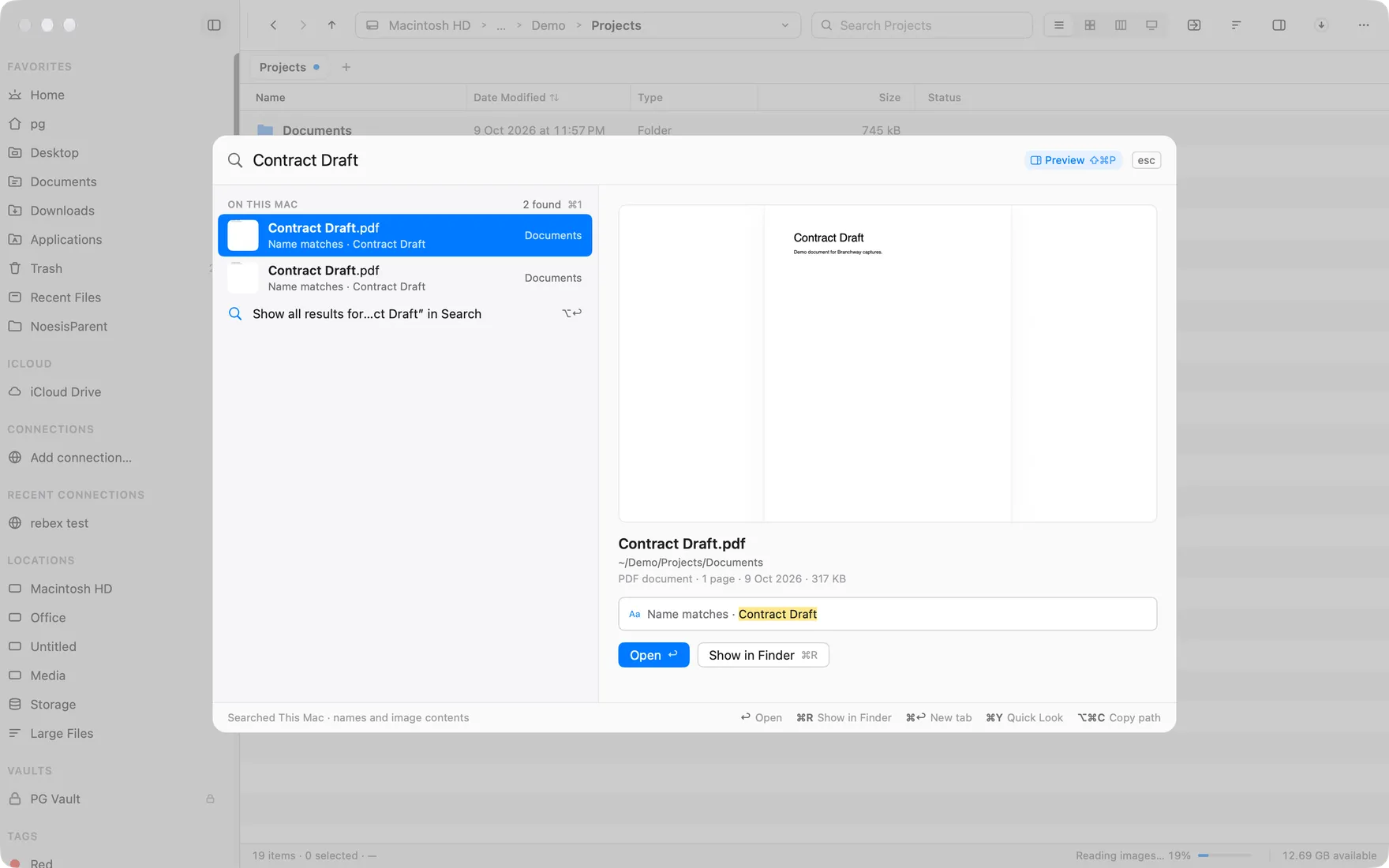
Give the ⌘K palette some room and a preview opens beside the results. A PDF jumps to the page that matched and marks the words. A video waits, paused. Everything else shows its Quick Look.
Which way should you use?
- A word you remember, in a document on your startup disk: Spotlight, with
kind:and a date to narrow it. - A photo in your Photos library: search in Photos.
- Anything else, on any drive, described the way you remember it: Branchway.
If disk space is the real problem, read how to find large files on a Mac. Weighing up file managers? See our pick of Finder alternatives.
Branchway runs on macOS 14 or later. The trial is 14 days with every feature, and browsing, search and preview stay free after it. Try Branchway free for 14 days, or read the search help page.
Questions people ask
How do I search inside files on a Mac?
The built-in way is to type a word into Spotlight (⌘Space) or a Finder window's search field; both look inside the text of documents Spotlight has indexed. The faster way is Branchway: press ⌘K and type what you remember, such as pdfs over 1 mb from last week, and it searches every drive, external ones included.
Why does Spotlight not find a file I know is there?
The usual reasons are that the folder is in Spotlight's Privacy list, the drive is not indexed, the index is still being built, or the file's app does not give Spotlight its text. Rebuilding the index with sudo mdutil -E / often helps. Branchway keeps its own index of every drive, so names are found even when Spotlight misses them.
Can I find a photo on my Mac by describing it?
Yes. In the Photos app, search for things like dog, beach or a word written in the picture. For image files in ordinary folders and on external drives, switch on image search in Branchway and search for a receipt, a beach or a whiteboard.
Can Branchway find a screenshot by the words in it?
Yes. With image search on, Branchway reads the text in pictures as well as what they show, so screenshots and photos of signs, receipts and whiteboards turn up when you search for words in them. It uses the image tools built into macOS, on your Mac.
Does Branchway's sentence search send my files anywhere?
Your files and searches stay on your Mac. Image search uses the image tools built into macOS, and the optional smart search model is downloaded once from Evenpine and then runs on your Mac.