How to compare two folders on a Mac
Find what differs between two folders with Terminal's diff or FileMerge, then see it in one table with Branchway's folder compare and sync.
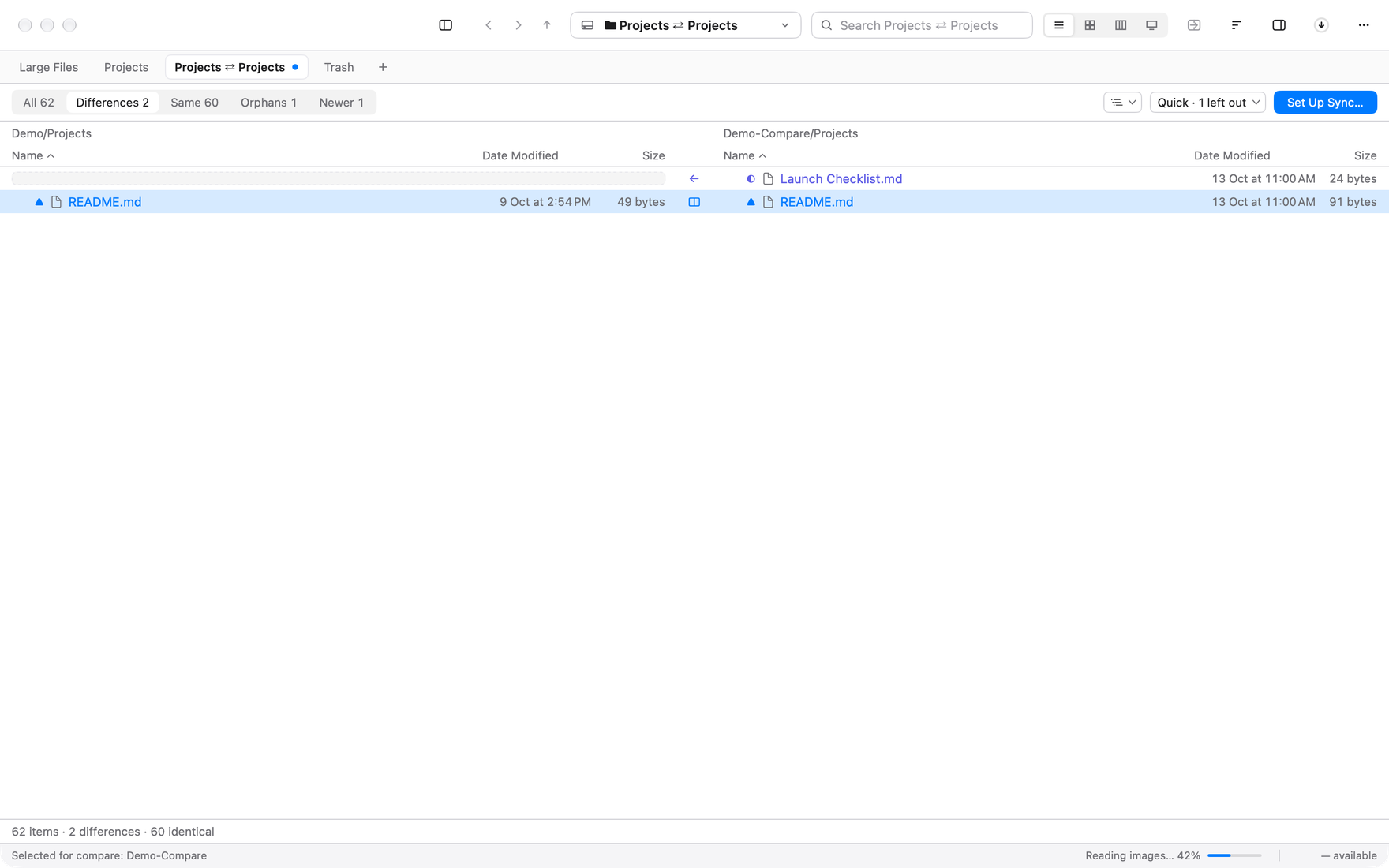
The short answer: Finder cannot compare folders. In Terminal, diff -rq lists every file that differs or exists on one side only. For a view you can click through, Branchway compares two folders in one table, filters to the differences, opens text files side by side and can sync the two. Try Branchway free for 14 days.
The built-in ways come first: Terminal, then FileMerge. Branchway follows.
Can Finder compare two folders?
Not on its own. The closest you get is two Finder windows side by side, both in list view and sorted by name, and your own eyes. That works for a dozen files. It does not tell you when two files with the same name and size have different contents. How to get a dual-pane file manager on a Mac shows how to set up the two windows.
How do you compare two folders in Terminal?
The diff command that comes with macOS compares folders as well as files.
- Open Terminal from Applications › Utilities.
- Type
diff -rqwith a space at the end. - Drag the first folder from Finder into the Terminal window. Its path appears.
- Drag the second folder in, then press Return.
It looks like this:
diff -rq ~/Projects ~/Backup/Projects
-r goes into every subfolder and -q reports only which files differ, not how. The output has two kinds of line:
Files /Users/you/Projects/README.md and /Users/you/Backup/Projects/README.md differ
Only in /Users/you/Projects/Design: Logo.png
diff compares contents, so it catches files that have the same size but different bytes. It changes nothing.
To see how two text files differ, line by line:
diff -u ~/Projects/README.md ~/Backup/Projects/README.md
Lines starting with - are only in the first file, and lines starting with + only in the second.
A long list scrolls by quickly. Add | less to the end to page through it, or > ~/Desktop/differences.txt to save it as a file.
How do you compare folders with FileMerge?
FileMerge is Apple’s compare tool. It comes with Xcode, which is free on the Mac App Store but is a large download.
- Install Xcode from the Mac App Store and open it once.
- Choose Xcode › Open Developer Tool › FileMerge.
- Click Left… and choose the first folder, then Right… for the second.
- Click Compare.
FileMerge lists the files in both folders and marks those that differ or exist on one side only. Double-click a text file to see the two versions side by side with the changes highlighted. From Terminal, opendiff folder1 folder2 opens the same window.
FileMerge is made for text and source code. If you only need it for this, Xcode is a lot to install.
What is the faster way to compare two folders?
Branchway is our file manager for Mac, and folder compare is built in. It shows both folders in one table, row by row, and nothing is changed unless you ask.
Start a compare
There are a few ways in:
- Select two folders and choose Compare from the File menu.
- Choose Compare Folders… (⌥⌘K) and pick the two folders.
- With two panes open, choose Compare Panes (⇧⌥⌘D) to compare the folders they show.
- Select a folder and choose Select for Compare, go to the other one, and choose Compare with it.
The compare opens in its own tab. Recent pairs are listed in ⌘K, so you can compare the same two folders again later.
Filter to what matters
Chips at the top count each kind of row: All, Differences, Same, Orphans (only in one folder) and Newer. Click Differences and the identical files drop out of sight. Folders can be expanded or collapsed, and Expand Differences Only opens just the ones with changes inside.
By default Branchway compares size and date, and reads the contents only when those disagree. That is quick on big folders. A chip at the top changes how carefully files are checked, and the options can look inside archives and leave out hidden files or version-control folders.
Step through the differences
Go › Next Difference (⌥⌘↓) and Previous Difference (⌥⌘↑) move from one change to the next.
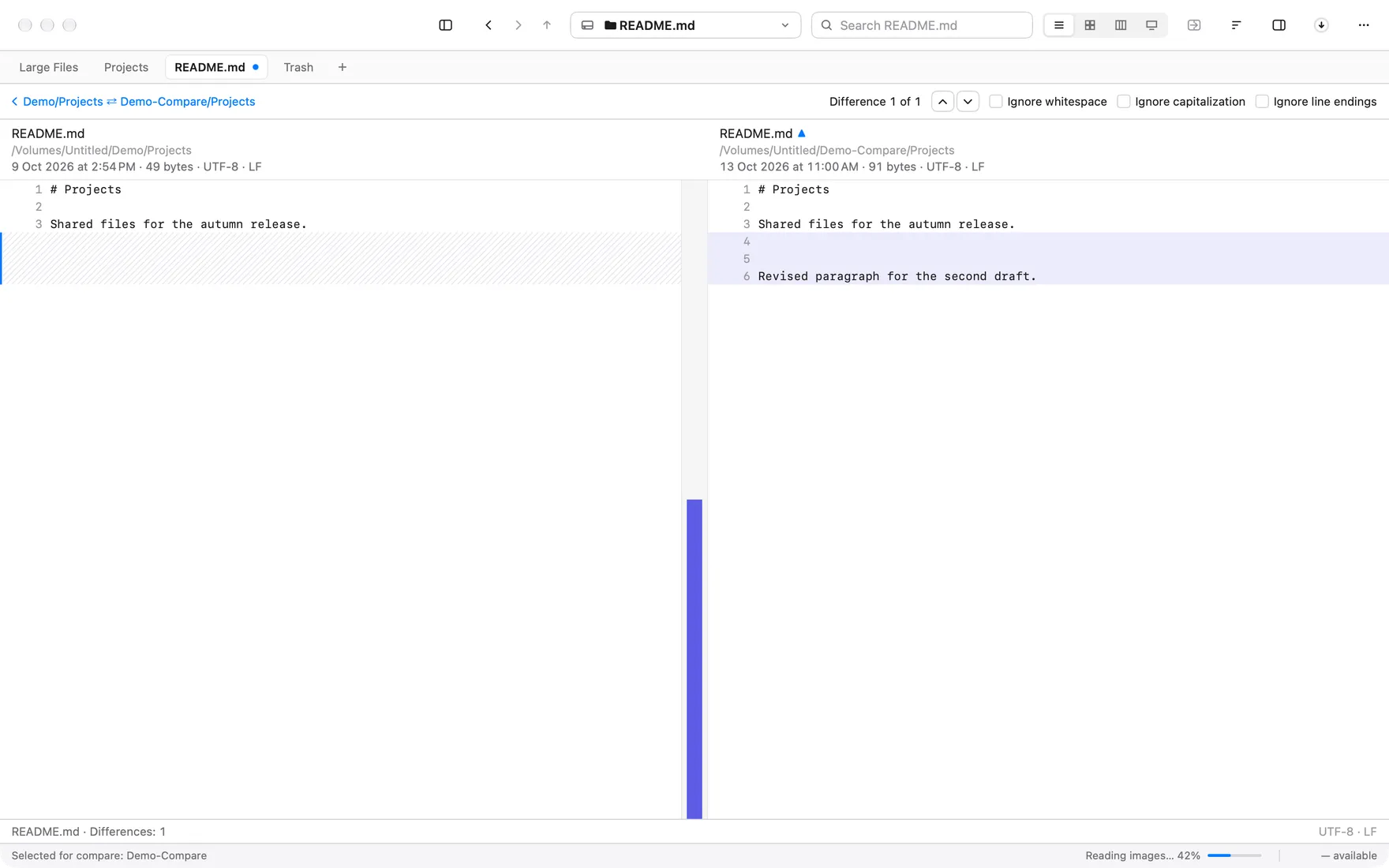
Open a pair of text files and they show side by side, with line numbers and the changed lines highlighted. Checkboxes ignore whitespace, capitalization and line endings, so a file saved on Windows does not show every line as changed. This works for source code too, including PowerShell, Go and Rust files.
Sync the two folders
Click Set Up Sync… to make the folders match. Choose a preset:
- Update both: copies newer and missing files in both directions.
- Update one folder: copies newer and missing files into that folder. Nothing goes to the Trash.
- Mirror: makes one folder an exact copy of the other. Files that are not in the source go to the Trash, not straight to deletion.
Each row can be changed to copy, move to the Trash, leave alone or ask. Check the preview, then run it. Copying and moving need a license after the trial; comparing does not.
Which way should you use?
- A quick check from the command line, or in a script:
diff -rq. - Source code, if you already have Xcode: FileMerge.
- Any two folders, filtered to the differences, with a sync when you are done: Branchway.
Comparing because a backup looks too big? Read what’s taking up space on your Mac. Moving from Path Finder for its compare? See Path Finder alternatives for Mac.
Branchway runs on macOS 14 or later and costs $19 once at launch for one Mac. The trial is 14 days with every feature, and browsing, search and preview stay free after it. See the tabs and dual pane help page or try Branchway free for 14 days.
Questions people ask
Can Finder compare two folders?
No. Finder has no compare command. You can put two windows side by side and sort both by name, but you have to spot the differences yourself. Terminal's diff, FileMerge and file managers such as Branchway can compare folders for you.
What is the Terminal command to compare two folders on a Mac?
diff -rq followed by the two folder paths. It lists files that differ and files that exist in only one folder, and it does not change anything.
Is FileMerge free?
Yes. FileMerge comes with Xcode, which is free on the Mac App Store. Open Xcode, then choose Xcode › Open Developer Tool › FileMerge. It is a large download if you do not already use Xcode.
How do I find files that are only in one folder?
With diff -rq, they appear as lines that start with Only in. In Branchway's folder compare, click the Orphans filter to list them.
Can I sync two folders after comparing them?
In Branchway, click Set Up Sync on the compare tab. Choose Update both, Update one folder, or Mirror one to the other, check the preview, then run it. Mirror moves extra files to the Trash rather than deleting them.