What's new in Branchway 1.0.4
Branchway 1.0.4 connects to SMB and WebDAV shares, adds an Activity Log that says why something failed, works with Google Drive, and brings Workspaces, Duplicates, search inside scanned PDFs and a smaller search index.
The laptop slept through lunch. You open it, go back to the copy you left running to the office NAS, and the folder is gone from the window. The share dropped while the Mac was asleep, and now you are guessing: the network, the server, or something on your side.
Branchway 1.0.4 is mostly about that moment. It connects to the places your files live, comes back to them by itself, and when something fails, it tells you what happened in plain words.
Network shares
Choose File › Connect to Server… or press ⇧⌘K, pick SMB or WebDAV, and type the server’s address. macOS handles the password. The share opens like any folder, and once you save it, it stays in the sidebar with your other places.
Saved shares reconnect by themselves after the Mac wakes or Branchway relaunches, so the NAS from the morning is still there after lunch. If you would rather connect by hand, turn that off in Settings › Integrations. To jump to a share, type its name or its server in ⌘K.
Copies and moves to a share show their progress, and you can pause or cancel them. A share has no Trash, so Move to Trash on a share asks first and says the item can’t be recovered. A locked folder is refused before anything inside it is touched. Copy Path is on the right-click menu for files on shares, servers and cloud folders too.
An Activity Log that says why
Press ⌥⌘0, or click the Activity Log button in the toolbar. The log lists what happened in this session: a share connected, a connection was lost, a copy, a move, a delete, a rename. When something fails, its line says why, shows the error code from macOS or the provider, and suggests what to try. An error message elsewhere in the app has a Show Log button that takes you there.
If you write to support, Copy or Save as Text gives you the log as plain text to paste in. The log lives only as long as the session. It is gone when you quit, and it never holds passwords, keys or what is inside your files.
Google Drive
If Google Drive for desktop is on your Mac, each of its accounts now appears in the Branchway sidebar, the way OneDrive does. Files that are only online carry a cloud mark. Right-click for Download Now, Remove Download, View Online or Copy Web Link. Pressing Space or opening Get Info on an online-only file never downloads it, so you can look around a shared drive without filling your disk.
Search that keeps up
In ⌘K, files whose names match now appear as you type, while the slower work on documents and pictures carries on behind them. The search index takes noticeably less room on disk. And reading the words in your documents no longer waits for the charger: it carries on while the battery is above 50 %.
Search also reads more of what you keep. The words in scanned PDFs are read with text recognition on your Mac, old Word .doc files are opened, and Chinese, Japanese and Korean text is found. Nothing leaves your Mac. When a search turns up pictures, films and documents together, you can see the results as tiles with previews instead of a list.
Workspaces
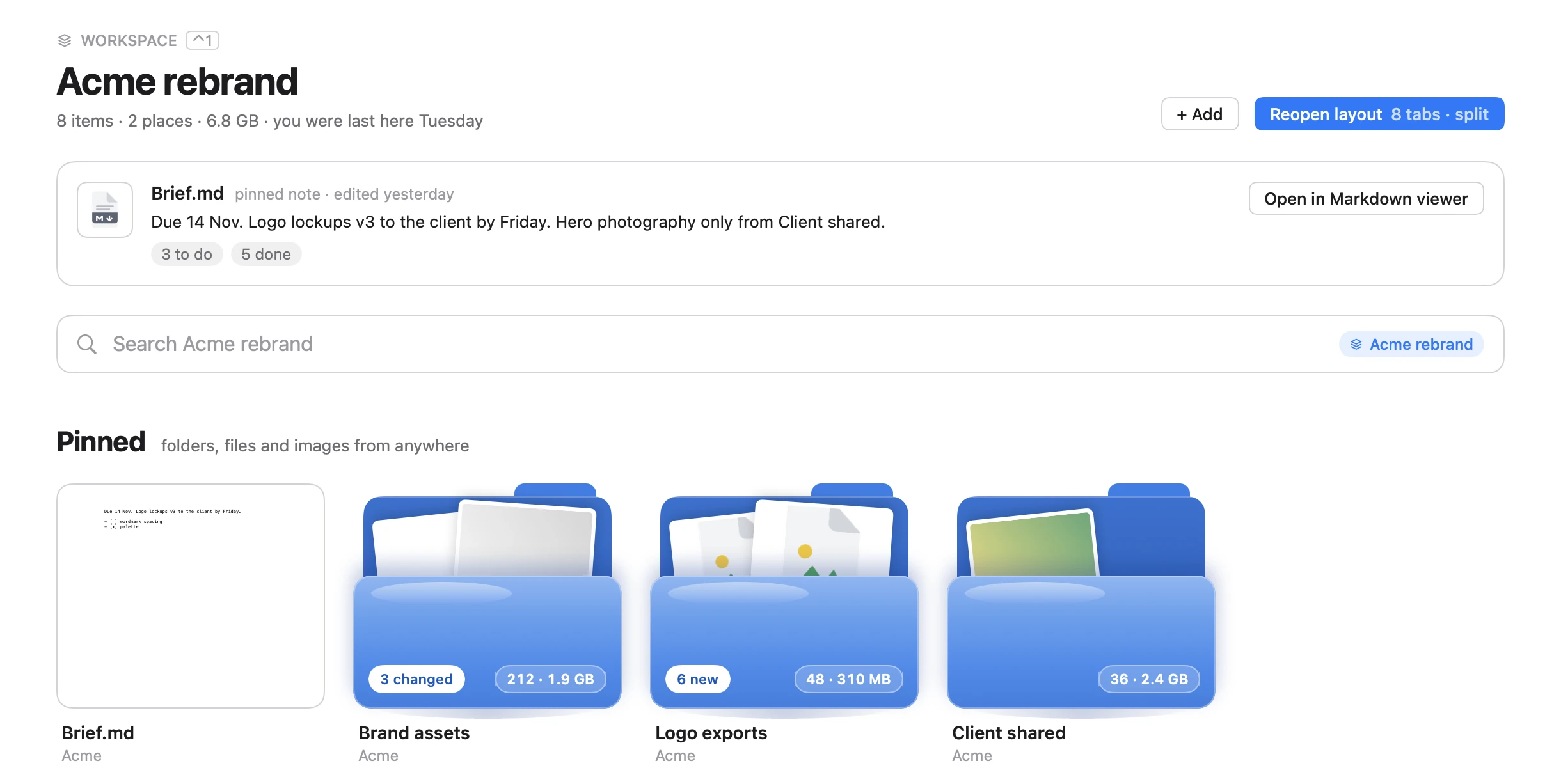
A workspace is a project. Add the folders and files that belong to it from wherever they sit; nothing is moved. The workspace page shows the files you use most, what changed lately and how much space the whole project takes. You can search inside just that project, and reopen its tabs and panes the way you left them.
Duplicates
Duplicates finds copies by what is in them, not by their names, and groups them by where they are. You choose which copy to keep. The others go to the Trash, so Put Back still works if you change your mind. To check one place only, use Find Duplicates in This Folder.
The smaller things
- Compare two files side by side, the way you already compare two folders.
- Grew this week on the Storage page lists the folders that grew a lot. Swap files and the sleep image now have their own lines, with a note on what they are.
- The Shelf can open only when you click it. The choice is in Settings › Shelf.
- Tabs show an icon for the kind of place they hold: a cloud folder, a server, a network share or an external drive.
- Group by kind now works in the Icons and Columns views, not only in the list.
- External drives eject and stay ejected, and a renamed file stays selected under its new name.
What it does not do yet
Network shares means SMB and WebDAV. SFTP servers and S3 and Azure storage were already in Branchway and work as before. How quick a WebDAV share feels depends on the server behind it. Google Drive works through the Google Drive for desktop app; Branchway does not connect to Drive on its own. The Activity Log covers this session only, so if you want to keep a failure for later, save it as text before you quit. Grew this week needs a few days of history before it has anything to show.
Updating
To update, choose Branchway › Check for Updates…. The release notes list every change and fix, and Help walks through connecting to a share and reading the Activity Log.
If you have not tried Branchway yet, it is free for 14 days with every feature, and no account is needed. After the trial, browsing, search and preview stay free; changing files needs a license. A license is one payment: $19 for one Mac at the launch price (regularly $29), $29 for two and $39 for three, with every 1.x update included. The Branchway page has the tour and the download.
Questions people ask
How do I update to Branchway 1.0.4?
Choose Branchway › Check for Updates… and install 1.0.4. Branchway also checks daily on its own and asks before it installs. You can download the app again from the Branchway page and drag it over the old copy; your settings, license and index stay.
Is the 1.0.4 update free?
Yes. Every Branchway 1.x update is included with a license.
How do I connect Branchway to a NAS?
Choose File › Connect to Server… or press ⇧⌘K, pick SMB or WebDAV, and enter the server's address. macOS handles the password. Saved shares appear in the sidebar and reconnect after sleep or a relaunch; you can turn that off in Settings › Integrations.
Does the Activity Log keep anything after I quit?
No. It holds the current session only and is gone when you quit. It never holds passwords, keys or the contents of your files.
Do I have to sign in to Google Drive in Branchway?
No. If Google Drive for desktop is set up on your Mac, its accounts appear in the Branchway sidebar by themselves.