How to get a dual-pane file manager on a Mac
Finder has no second pane. Here is how to put two Finder windows side by side on macOS 14 and 15, and how Branchway splits one window into two panes.
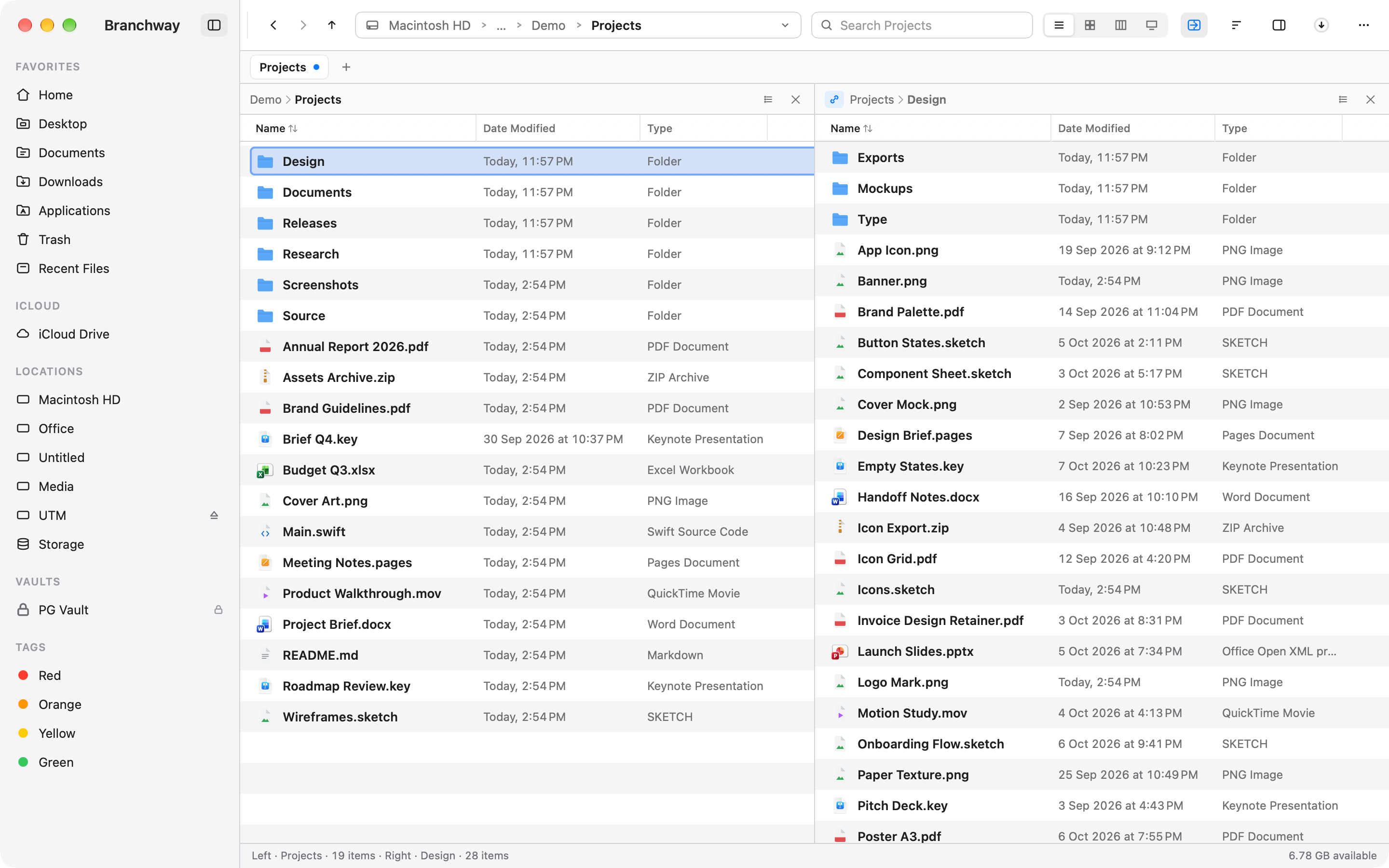
The short answer: Finder has no second pane. You can tile two Finder windows side by side, and that works for a quick move. If you move files between two folders every day, a dual-pane file manager keeps both in one window. In Branchway, press ⌥⌘2 and the window splits in two. Try Branchway free for 14 days.
The built-in way comes first, for macOS 14 Sonoma and macOS 15 Sequoia. Branchway is ours, and it is covered after that.
Does Finder have two panes?
No. A Finder window shows one folder. Column view shows the path to that folder from left to right, which is useful, but it is still one place. Tabs (⌘T) hold several folders in one window, and you see one at a time.
So the Finder way to see two folders at once is two windows.
How do you tile two Finder windows side by side?
First open the two folders:
- In Finder, press ⌘N to open a second window.
- Go to the second folder in it. ⇧⌘G lets you type a path.
Then put them side by side.
On macOS 15 Sequoia
- Drag the first window by its title bar to the left edge of the screen. When an outline appears, let go and it fills the left half.
- Drag the second window to the right edge.
You can also hover over the green button in the top-left corner of a window and pick a half under Move & Resize, or use Window › Move & Resize › Left and Right from the menu bar. To undo the tiling, drag the window away from the edge.
On macOS 14 Sonoma
- Hover over the green button in the top-left corner of the first window.
- Choose Tile Window to Left of Screen.
- macOS shows your other windows on the right half. Click the second Finder window.
This is Split View. Both windows go full screen together, in their own Space. Move the pointer to the top of the screen to see the menu bar, and press Esc or use the green button to leave.
Move and copy between the two windows
Drag files from one window to the other. On the same disk, Finder moves them. To another disk, Finder copies them. Hold Option while you drag to copy instead, or Command to move instead.
From the keyboard: select the files, press ⌘C, click in the other window, then press ⌘V to copy them or ⌥⌘V to move them there.
Where this falls short
Two windows work. They also come apart. Click another app and one window can end up behind it. Each window has its own toolbar and sidebar, so half the screen goes to chrome. There is no command for “copy to the other window”, and nothing keeps the two folders related. When you close them, the pair is gone.
If that is fine for you, stop here. If you do this daily, read on.
What is the faster way to work in two panes?
Branchway is our file manager for Mac, and dual pane is built into every window. Both folders sit in one window, under one toolbar and sidebar, each with its own header, path and history.
Split the window
Press ⌥⌘2, or choose Toggle Dual Pane from ⌘K. The window splits into two panes. Each pane can show a different folder in list, icon, column or gallery view. Press Tab to switch between them. The status bar names the folder and item count of each pane, so you know which side is active before you act.
Need more than two? View › Panes › Split Pane Right (⌘\) and Split Pane Below (⇧⌘\) halve the active pane. A tab holds up to four panes, and a layout of three or four panes comes back after you quit and reopen the app.
Move files without dragging
Drag from one pane to the other if you like. You can also select files and choose Copy to Other Pane or Move to Other Pane from ⌘K. Each pane’s header has a path you can click or type into, so you can point the destination exactly where you want it before you copy.
Coming from Windows or Total Commander? Switch to the Commander keyboard profile in Settings. F5 copies the selection to the other pane and F6 moves it. In a single pane, the same keys ask for a folder.
Let one pane follow the other
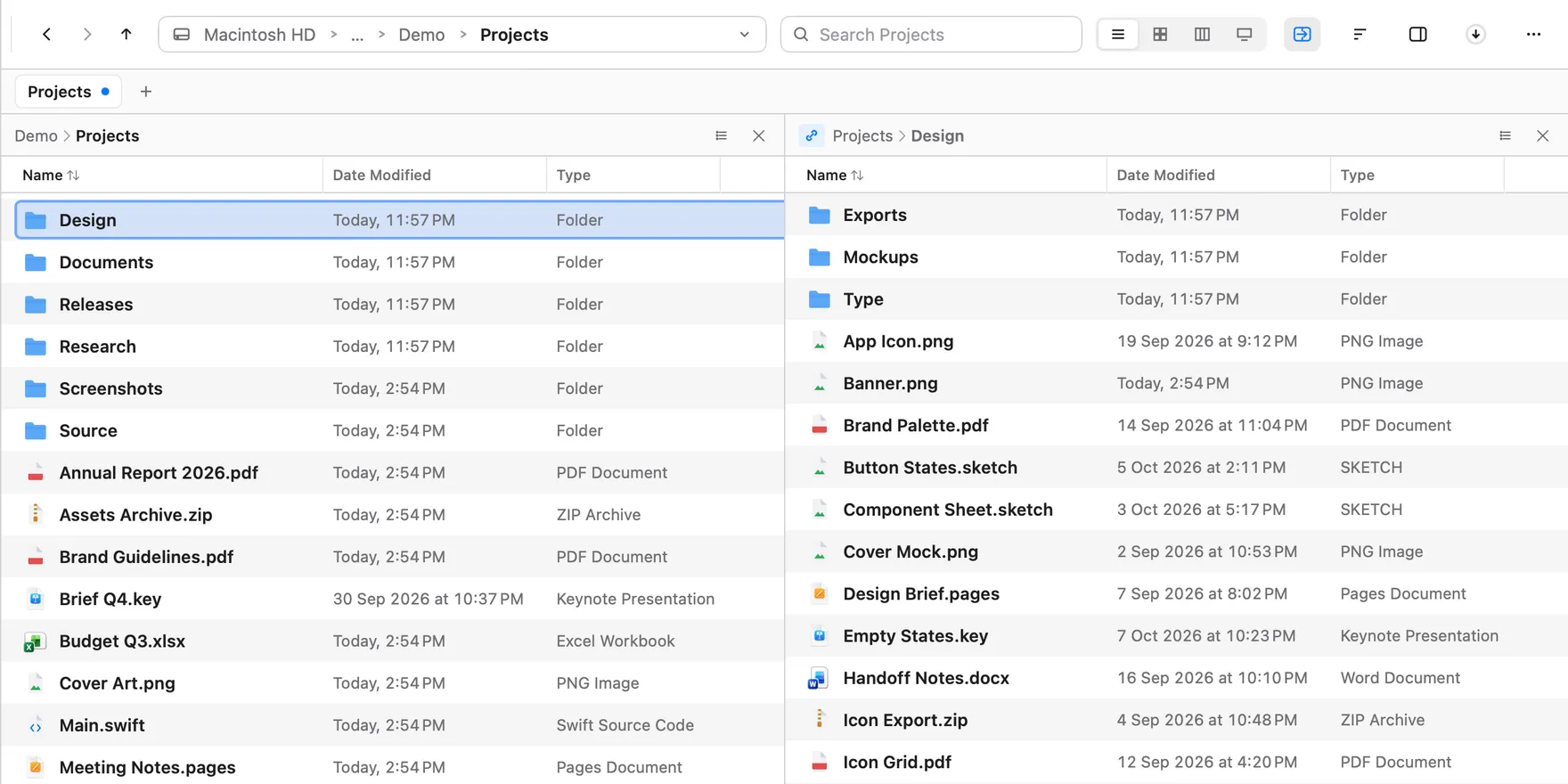
Turn on Sync Browsing (⌥⌘B). Select a folder on the left and the right pane shows what is inside it. It is like column view stretched across two panes, with room for full columns on both sides. If you navigate the right pane by hand, sync pauses, and it picks up again when you select something on the left. Sync Browsing is saved per tab.
Compare the two sides
With two panes open, Compare Panes (⇧⌥⌘D) compares the two folders and shows what differs. It is covered step by step in how to compare two folders on a Mac.
Panes inside tabs
Each tab keeps its own split. One tab can hold a single folder while the next holds two panes, and Duplicate Tab copies the split along with it. Drag a tab out to make a new window and its panes go with it.
Which way should you use?
- An occasional move between two folders: two Finder windows, tiled.
- Two folders you go back and forth between all day, or more than two at once: Branchway’s panes.
For a wider look at the options, read our pick of Finder alternatives. If you used Path Finder for its dual pane, see Path Finder alternatives for Mac.
Branchway runs on macOS 14 or later. It costs $19 once at launch for one Mac, and every 1.x update is included. The trial is 14 days with every feature, and browsing in both panes stays free after it. Read the tabs and dual pane help page or try Branchway free for 14 days.
Questions people ask
Does Finder have a dual-pane view?
No. Finder shows one folder per window, or one per tab. The closest you get is two Finder windows tiled side by side, which macOS 14 and 15 can do from the green button in the window's corner.
How do I see two folders side by side on a Mac?
Open two Finder windows with ⌘N and tile them: on macOS 15, drag one to the left edge of the screen and the other to the right; on macOS 14, hover over the green button and choose Tile Window to Left of Screen. In Branchway, press ⌥⌘2 and the window splits into two panes.
How do I copy files from one pane to the other in Branchway?
Drag them across, or use Copy to Other Pane and Move to Other Pane from ⌘K. With the Commander keyboard profile, F5 copies and F6 moves the selection to the other pane.
Can Branchway show more than two panes?
Yes. View › Panes › Split Pane Right (⌘\) and Split Pane Below (⇧⌘\) halve the active pane. A tab holds up to four panes, and Tab moves between them.
What does Sync Browsing do?
With Sync Browsing on (⌥⌘B), the right pane follows the folder you select on the left. It pauses if you navigate the right pane by hand and picks up again when you select in the left pane.
Do panes keep working after the Branchway trial?
Browsing in both panes stays free after the 14-day trial. Copying and moving files between them needs a license, which is a one-time purchase.