How to batch rename files on a Mac
Rename many files at once with Finder's Rename sheet or a Terminal loop, and see every new name before you commit with Branchway's batch rename.
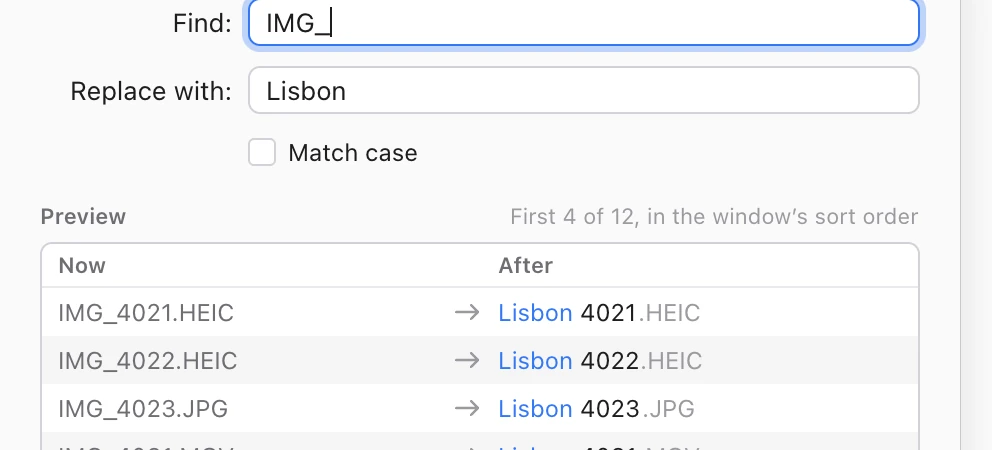
The short answer: select the files in Finder, Control-click and choose Rename. Finder can replace text, add text, or rename everything to a name and a number. It shows one example. Branchway offers the same three ways to rename, with a preview of each new name and a warning before any name clashes. Try Branchway free for 14 days.
Finder’s way is first, for macOS 14 Sonoma and macOS 15 Sequoia, then a Terminal loop for patterns Finder cannot do, then Branchway.
How do you batch rename files in Finder?
- Select the files. Click the first, then Shift-click the last for a range, or Command-click to pick them one by one. ⌘A selects everything in the folder.
- Control-click any of the selected files and choose Rename. Finder opens a sheet called Rename Finder Items.
- Pick a mode from the menu at the top-left of the sheet, fill it in, and click Rename.
If you change your mind, press ⌘Z straight away and Finder puts the names back.
Replace Text
Finds a piece of text in every name and replaces it. Type IMG_ in Find and Lisbon_ in Replace with, and IMG_4021.HEIC becomes Lisbon_4021.HEIC. Leave Replace with empty to remove the text.
Add Text
Adds the same text before name or after name. Good for a prefix such as 2026- or a suffix such as final. The extension stays at the end.
Format
Replaces each name with a base name and a number or a date:
- Name and Index: the base name and a running number.
- Name and Counter: the base name and a zero-padded number such as 00001, so the files sort correctly past nine.
- Name and Date: the base name and a date.
Type the base name in Custom Format, choose whether the number goes after or before the name, and set Start numbers at. The line at the bottom of the sheet shows an example of the result.
Where Finder’s sheet falls short
The example shows one name. With a long selection you cannot see the rest of the results, or where the numbering starts, until you have renamed. If you want a particular order, put the files in that order in the window first and check the result afterwards.
How do you batch rename files in Terminal?
For a pattern Finder cannot do, a short loop in Terminal works. This replaces IMG_ with Lisbon_ at the start of every JPEG in the current folder:
for f in IMG_*.jpg; do mv -n "$f" "Lisbon_${f#IMG_}"; done
-n stops mv from overwriting a file that already has the new name. Test on a copy of the folder first. There is no undo in Terminal.
What is the faster way to rename many files?
Branchway is our file manager for Mac. Its batch rename has the same three modes as Finder, so nothing new to learn. The difference is that you see the result before you commit.
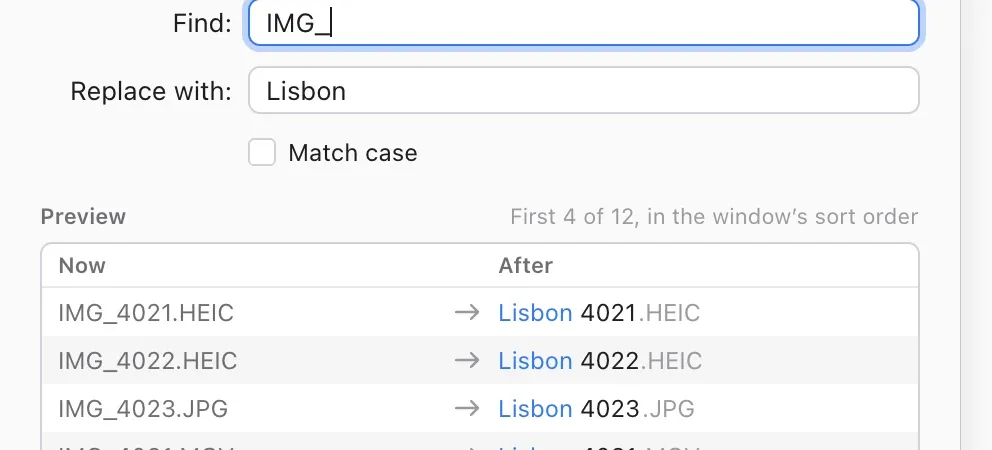
Open it
Select the files and choose Rename Items… from the right-click menu or the File menu, or type rename in ⌘K. The menu row and the sheet say how many items, such as Rename 12 Items.
Pick a mode
- Replace Text: Find and Replace with, with a Match case box. Leave Replace with empty to remove the text.
- Add Text: before or after the name.
- Format: Name and Index (
Trip 1), Name and Counter (Trip 00001) or Name and Date. Date uses each file’s date created. Set where the number goes and what it starts at.
Every mode changes the name only. Extensions stay as they are, so .HEIC is always last.
Check the preview
The preview lists each file twice: Now and After, with the changed part marked. The numbering follows the order the files are sorted in the window, and the preview says so. Sort by date first if you want the oldest photo to be number 1.
The preview also checks every result before you rename:
- a name already used by another file in the folder
- two results that would get the same name
- an empty name
- a name containing
:or/ - a name that is too long
Problems are listed first, and Rename stays off until they are fixed. A new name that starts with a dot is allowed, with a note that the file will be hidden.
Undo the whole batch
One ⌘Z puts every name back. If a file cannot be renamed, for example because another app has it locked, the others still are, and a short summary lists the ones that failed.
What it doesn’t do
There are no regular expressions and no case changes. For those, use the Terminal loop above or a dedicated renaming app.
Which way should you use?
- A quick rename with a prefix or a number: Finder’s Rename sheet.
- A pattern Finder cannot express: a Terminal loop, on a copy first.
- Many files where you want to see every new name, in the order you sorted them, before anything changes: Branchway.
Want to tidy the folder first? Read what’s taking up space on your Mac, or how to search files by what is in them to find the files you want to rename.
Branchway runs on macOS 14 or later and costs $19 once at launch for one Mac. The trial is 14 days with every feature. After it, renaming needs a license, and browsing, search and preview stay free. See the keyboard shortcuts help page or try Branchway free for 14 days.
Questions people ask
How do I rename multiple files at once on a Mac?
Select the files in Finder, Control-click one of them and choose Rename. Pick Replace Text, Add Text or Format, fill in the fields and click Rename. In Branchway, choose Rename Items… from the File menu or the right-click menu and you see every new name before you commit.
How do I number files in order on a Mac?
In Finder's Rename sheet, choose Format, then Name and Index or Name and Counter, type a base name and a starting number. In Branchway, the numbers follow the order the files are sorted in the window, so sort first, then rename.
Can I undo a batch rename?
Yes. In Finder, press ⌘Z straight after the rename. In Branchway, one ⌘Z puts every name in the batch back.
Does batch renaming change the file extension?
Neither Finder nor Branchway changes the extension in Add Text or Format mode. Branchway leaves extensions as they are in every mode, so a .HEIC file stays .HEIC.
Can I rename files with regular expressions on a Mac?
Not in Finder, and not in Branchway's batch rename, which offers Replace Text, Add Text and Format. For patterns, use a Terminal loop or a dedicated renaming app.