One box for a path, a name, a command or a photo
Press ⌘K in Branchway and type whatever you have in your head. A folder path, part of a file name, the name of a command, or a description of a picture.
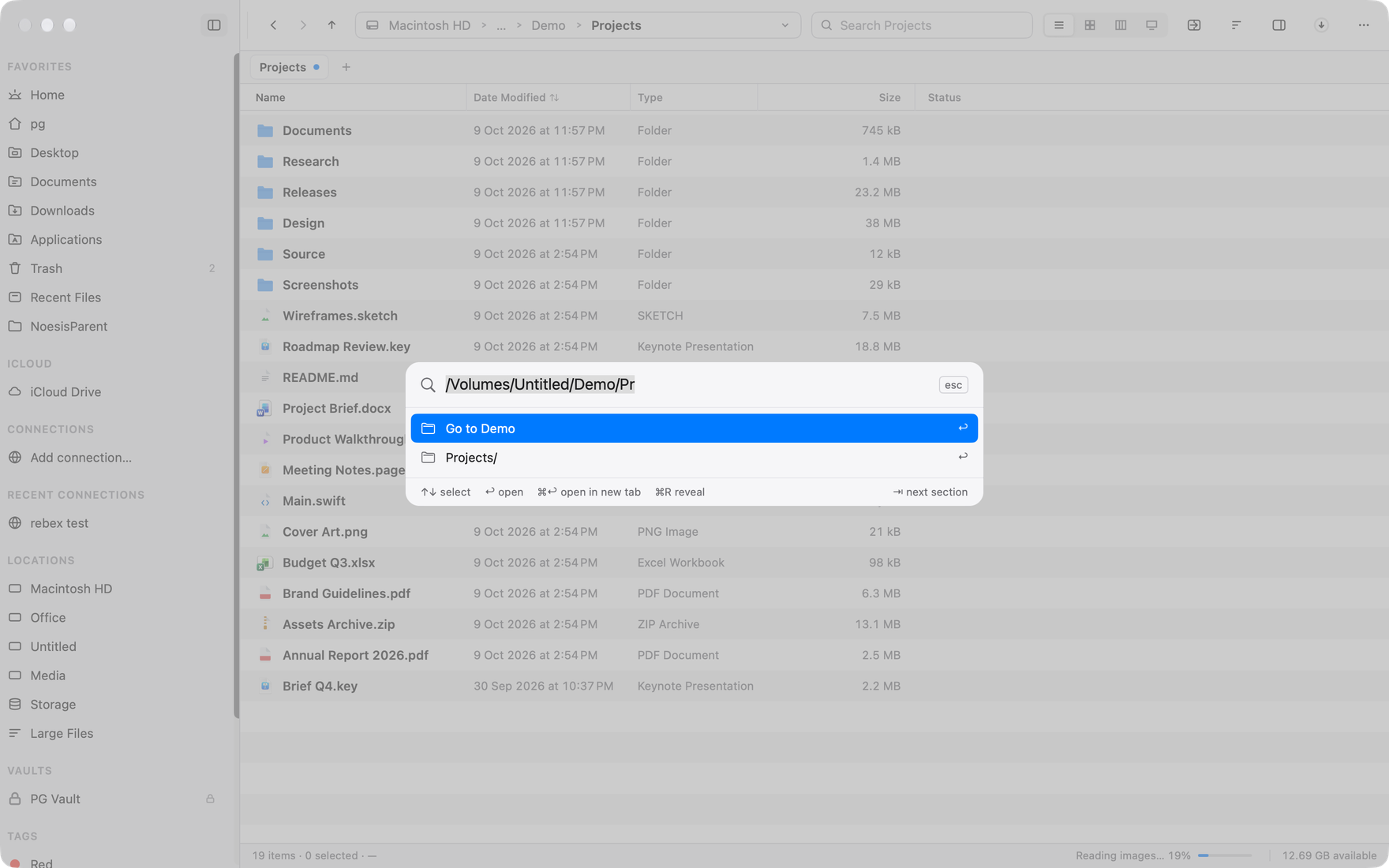
Most of the time you know roughly what you want. A folder you were in yesterday. A file whose name had “contract” in it. The command that turns dual pane on. A photo of a whiteboard from a meeting. In Branchway all of those start the same way. Press ⌘K and type.
A path
Start with a folder path, like ~/Pictures/ or a full path from the root. As you type, the palette lists what is inside, up to eight matches at a time. Return opens a folder, ⌘Return opens it in a new tab, and ⌘R shows a file in its folder. Type a path that does not exist and the palette offers the nearest folder that does.
~ works, and so does a file:// address pasted from somewhere else. Network and cloud drives are not listed this way, and locked vaults and hidden files are left out.
A name
Type part of a file or folder name and the results come from Branchway’s own index. The index holds file names, one per volume, including external drives, and it is kept on this Mac. Spotlight results are merged in when Spotlight is on, so search still works when Spotlight is off or still catching up.
The index updates as files change. It pauses while you type, on Low Power, and when the Mac runs hot.
Without the optional model described below, searching inside documents still goes through Spotlight. That is the honest limit of a name index.
A command
Every menu command is in the box too, and so are the ones you saved. Type “dual” and the command that turns dual pane on is there, with its shortcut beside it. It is the quickest way to run something when you know what you want but not where it lives in the menus.
A photo
Switch on image search in Settings and Branchway reads the text in a picture and the things it shows, using the image tools built into macOS, on this Mac. Then a search for a receipt, a beach or a whiteboard finds the picture, not just a file called IMG_4021. Matches are marked as In image.
There is an optional extra, Smarter photo search. You download a model once, and after that it runs on this Mac. With it installed, the same sentence also finds documents and videos. A sentence inside a Word, PowerPoint, Excel or e-book file, or a PDF, shows up as In document, with the slide, sheet or section when Branchway knows it. A video shows up as In video at 1:42, with the matching frame as its picture. Branchway looks at sampled frames and does not listen to the sound. It needs Apple silicon and macOS 15 or later, and it is off until you turn it on.
See it before you open it
Give the palette some room and a preview opens beside the results. Arrow down the list and the preview follows. A PDF jumps to the page that matched and marks the words. A video waits, paused. Everything else shows its Quick Look. ⇧⌘P shows or hides the preview.
And when it is not enough
Return on Show all results opens the Search page, with scope, kind, date, size and tag filters across every drive. ⌘1 to ⌘9 jump between result groups. Open the palette with nothing typed and it lists the files you opened lately and a few commands.
Branchway is a file manager for Mac, macOS 14 or later. The trial is 14 days with every feature, and browsing, search and preview stay free after it. Meet Branchway, or read the search help page.