What's new in Branchway 1.0.3
Branchway 1.0.3 adds the Shelf, a drop zone at the edge of your screen, a Markdown viewer and a preview pane beside the list, and fixes several freezes.
Branchway 1.0.3 is out. It brings three new things you will see every day, and a set of fixes for the moments when the app, or the whole Mac, used to stop and wait.
The Shelf
A small tab now sits at the edge of your screen, over every app. Point at it and the Shelf slides out with the folders you pin and a strip of your newest files.
Drop files on a pinned folder to save them there. Drag a file out of the Shelf into Mail, a chat or any other app, and it is copied, never moved, so the original stays where it was. You can search what is on the Shelf, open a folder right inside it as tiles or as a list, rename a file by clicking its name, and press Space to preview it big in the middle of the screen.
Removing an item only takes it off the Shelf; the file is not touched. If you would rather not have it, Settings › Shelf turns it off.
Markdown, formatted
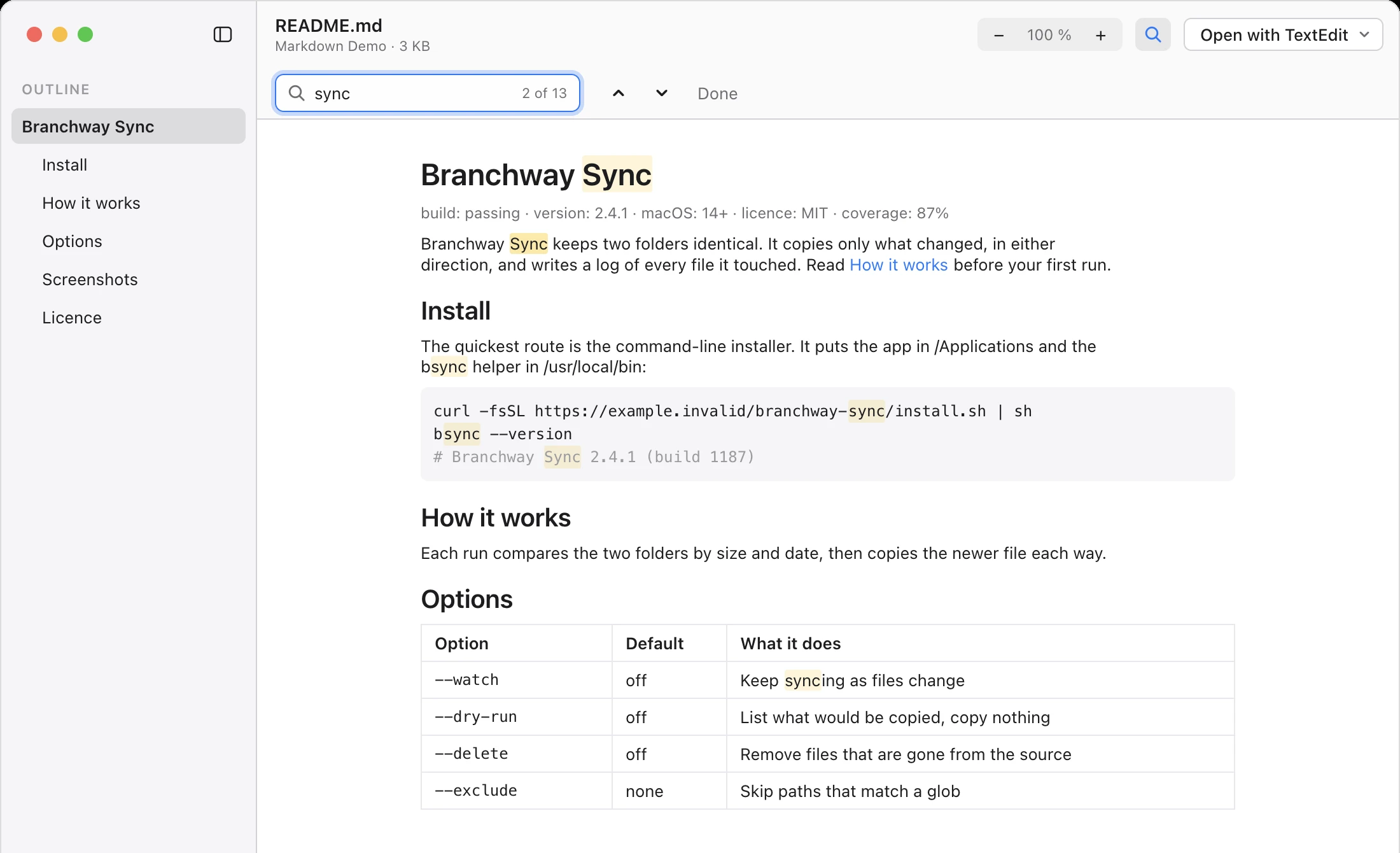
Press Space on a .md or .markdown file and it opens as a readable page: headings, lists, tables, code and pictures, in a window that follows your theme. An outline of the headings sits on the side, so a long README is one click from the part you want. Find with ⌘F, zoom with ⌘+ and ⌘−, and press Space or Esc to close.
The page updates when the file changes on disk, so you can keep it open while you write in another app. The Inspector and ⌘K show Markdown formatted too.
A preview pane beside the list
Press ⇧⌘P and a pane opens to the right of the list. It shows whatever you select: Markdown formatted, and pictures, PDFs, text, films and office files the way Quick Look shows them. The arrow keys keep moving through the list while the pane follows, so you can read your way through a folder without opening anything.
Drag the divider to resize the pane. Each tab remembers whether its pane is open and how wide it was.
Fewer freezes
The biggest fixes in this release are about waiting.
- First launch. With a USB stick or external drive plugged in, the welcome window could freeze while macOS waited for you to allow access to the drive. Branchway now checks drives in the background and waits until setup is done before it indexes anything.
- Right-click. A context menu could hang while Branchway asked macOS which apps open a file, most of all on external or network drives. Menus now appear at once and Open With fills in a moment later.
- The menu bar with an external drive. Checking whether Empty Trash should be enabled could keep menus waiting for minutes. The Trash is now counted in the background, only when a drive comes or goes.
- Dead network volumes and cloud folders. Dragging over a folder, Show in Finder from another app and opening the Quick Window no longer wait on a server that does not answer.
Search that understands more
Search reads everyday sentences much better. “design doc” and “small business plan” find files with those names. Dates like 9/15/2026, “Sep 2025”, weekends, holidays and “the last hour” are understood, and a chatty sentence like “can you find the quarterly forecast” searches for just the words that matter. A misspelt name finds the file too: “complaince” or “Complaince” finds your compliance folder, and files named the way you typed still come first.
There is also a new switch in Settings, on by default, that keeps the photo search model ready, so the first sentence search after a while answers straight away.
The rest
Zips made on Windows open and extract, Branchway uses much less memory, indexing is gentler on a busy Mac, and every open window sees a rename or move at once. The full release notes list everything.
To update, choose Branchway › Check for Updates…. If you have not tried Branchway yet, the Branchway page has the tour and a 14-day free trial.
Questions people ask
How do I update to Branchway 1.0.3?
Choose Branchway › Check for Updates… and install 1.0.3. Branchway also checks daily on its own and asks before it installs. You can download the app again from the Branchway page and drag it over the old copy; your settings, license and index stay.
Is the 1.0.3 update free?
Yes. Every Branchway 1.x update is included with a license.
How do I open the preview pane?
Choose View › Show Preview Pane, press ⇧⌘P, click the toolbar button next to the Inspector's, or find it in ⌘K.
Can I turn the Shelf off?
Yes. Switch it off in Settings › Shelf, or type Turn Shelf Off in ⌘K.
Does the Markdown viewer load pictures from the web?
Pictures a note links to online load after the page and are kept for next time. Settings › General › Load pictures from the web turns this off.