
Branchway · A Finder alternative for Mac Your files, finally at home.
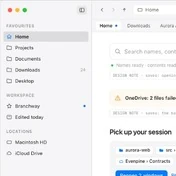
Find any file, open two folders side by side, and see where your space went.
Download free trialBuy, from $19 ›Try it liveWatch the filmFilm 1:21


File manager · What Finder leaves out Six things, done properly.

Find anything
Names, contents and photos, from one box.

Work in two panes
Copy across, compare, keep them in step.

See what fills the disk
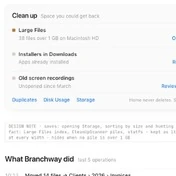
Biggest first, and nothing goes without asking.

Know where it came from
Downloads grouped by the site that sent them.

Lock what's private
Vaults open with Touch ID and close together.

Make it yours
Themes, each with their own icons.
1 · ⌘K command palette One box for everything.
Press ⌘K anywhere and type. A path opens the folder, a name finds the file, a command runs, and a plain sentence finds the photo you meant.
How search works ›


2 · Natural-language file search Describe it. Find it.
Type what you remember. Branchway looks inside photos, documents and videos on your Mac and tells you where it found the match.
Optional on-device model · Apple silicon, macOS 15 or later
Searching inside files, in Help ›


3 · Dual panes, folder and file compare Two folders, kept in step.
Open two panes side by side. Turn on Sync Browsing and the right pane follows the left. Compare lines up two folders, or two files, and shows what differs.
Two panes, step by step, in Help ›


4 · Preview pane beside the list See it without opening it.
Press ⇧⌘P and a pane opens beside the list. Arrow through your files and it follows: Markdown formatted, pictures, PDFs, films and documents as they are.


5 · Markdown viewer Read a README like a page.
Press Space on a Markdown file and it opens formatted, with an outline of its headings. Find with ⌘F, zoom with ⌘+ and ⌘−. The Inspector and ⌘K show it formatted too.


6 · Shelf drop zone Your folders, one flick away.
A slim tab waits at the edge of your screen, over every app. Point at it and your pinned folders and newest files are right there. Drop a file on a folder to save it there, or drag one out into any app as a copy.


7 · Workspaces for projects One project, wherever its files are.
Add folders and files from anywhere to a workspace, without moving them. Its page shows what you use most, what changed lately and the total size, and reopens its tabs and panes.


8 · Disk usage and storage map See what fills the disk.
The storage map sizes every folder by what it holds. Grew this week names the folders that grew a lot. Large Files lists the biggest first. Tick what can go, review it, then decide.
Reading the Storage view, in Help ›


9 · Duplicate file finder Keep one copy. You choose which.
Branchway finds copies by their content, not their names, and groups them by where they are. Pick the one to keep; the others go to the Trash, with Put Back.

10 · Downloads by source site Know where it came from.
Your Mac remembers the site behind every download. Branchway groups Downloads by it, so the installer from GitHub sits apart from the PDF someone mailed you.


11 · Trash, hidden files, Put Back A Trash you can trust.
Branchway shows the hidden files Finder keeps in the Trash, with their size. Empty Trash tells you exactly how many items and how much space before anything goes.


12 · Encrypted folder vaults Lock what's private.
Make any folder a vault. It opens with Touch ID and stays encrypted on disk. Lock All Vaults closes every one at once.


13 · Zip, tar and 7z browsing Open a zip like a folder.
Browse inside zip, tar and 7z files without unpacking them. Preview what's there, then drag out only the file you need.


14 · iCloud Drive, OneDrive, Google Drive, Dropbox Know what's really on your Mac.
iCloud Drive, OneDrive, Google Drive and Dropbox files show their state in a column. Download Now or Remove Download from the right-click menu; browsing never downloads a file.


15 · SMB and WebDAV network shares Your NAS, in the sidebar.
File › Connect to Server (⇧⌘K) opens SMB and WebDAV shares. Saved ones wait in the sidebar and reconnect after sleep. If a copy fails, the Activity Log says why and what to try.
What else is new in 1.0.4 ›

16 · NTFS on MacBeta Windows drives, read and write.
Plug in a drive formatted on a PC and copy to it like any other. Read and write NTFS drives, in beta, turned on in Settings.


17 · Themes with their own icons Make it yours.
Themes, each with their own colours and folder and file icons, in light and dark. Pick one, or let it follow your Mac.


18 · Batch rename, permissions, shortcuts Small things, done properly.
Rename a batch of files with a live preview. Fix permissions without Terminal. Spot git repositories at a glance. Keep Finder's shortcuts, or switch to Windows or Commander keys.
Batch rename

Permissions

Git repositories, marked

Keyboard profiles

19 · Tabs, tags, Quick Look and more And the small things you reach for every day.
The parts you notice on the fiftieth day, not the first.
-
Tabs you can tear off
Drag a tab out for its own window, or onto another window to join it.
-
Tabs that say where they are
A tab shows an icon for a cloud folder, a server, a network share or an external drive.
-
Paste images from the web
Paste or drop an image from a browser and it becomes a file, named from its source.
-
Smart folders
Save a search and keep it in the sidebar.
-
Tags
Finder tags in the sidebar, the menus, Get Info and the inspector.
-
Undo that remembers
Undo and Redo say what they will do, and the journal is kept.
-
Operations queue
Copies and moves wait their turn. Pause, resume or cancel any of them.
-
Conflict choices
Replace, Keep Both or Skip, with a default answer you set once.
-
Menus in your theme
Context menus take the colours and type of the theme you picked.
-
Quick Look
Press Space. The preview follows your selection.
-
Copy Path
POSIX or HFS path from any file, folder, tab or empty space.
-
Spring-loaded folders
Hold a drag over a folder and it opens for you.
-
Favorites
Drag folders into the sidebar and put them in your own order.
-
Default apps
Choose the app for each kind of file in one Settings pane.
Open in Terminal
⌃⌥T opens the folder in Terminal, iTerm or the one you choose.
-
Filename extensions
Show all, hide all, or do as Finder does.
-
Address bar
Breadcrumbs, typed paths with completion and a history on Back.
-
Inspector
Preview, facts, tags and Open With beside your files. ⌥⌘I.
-
First-run tour
A short tour after setup. Help › Show Tour Again any time.
-
Speaks your Mac's language
Menus, Settings and Help follow your Mac from the first launch.
-
Updates you approve
Branchway checks daily and never installs without asking.
Finder alternative, side by side Keep Finder. Do more here.
Finder stays on your Mac, and Reveal in Finder takes you back any time. This is what Branchway adds.
| What you can do | Finder | Branchway |
|---|---|---|
| Tabs and Quick Look | Yes | Yes |
| A preview pane beside the list | No | Yes |
| Markdown files shown formatted, with an outline | No | Yes |
| A drop zone at the screen edge for your folders | No | Yes |
| Two panes side by side, with Sync Browsing | No | Yes |
| Compare two folders file by file | No | Yes |
| Gather a project from folders anywhere, without moving them | No | Yes |
| Find duplicate files by what is in them | No | Yes |
| Search that still works with Spotlight off | No | Yes |
| A map of what fills your disk | No | Yes |
| Browse zip, tar, 7z and rar without extracting | No | Yes |
| Filter downloads by the site they came from | No | Yes |
| Themes with their own folder and file icons | No | Yes |
| Write to NTFS drivesBeta | No | Yes |
- macOS 14 or later
- Apple silicon and Intel
- Signed and notarized by Apple
- Files stay on your Mac
- No account
Branchway is a file manager for Mac made by Evenpine. A native Finder alternative with tabs, dual panes, its own search index, a map of your disk and themes to make it yours. Branchway keeps its own index of file names on each volume and merges in Spotlight when it's there, so it still finds things when Spotlight is switched off or still catching up.
Pricing · one-time purchase Pay once. Keep it.
Free for 14 days with every feature. Then one payment, every version 1 update included.
- Every feature
- All version 1 updates
- No subscription, no account
- Refund within 14 days
After the trial, browsing, search and preview stay free; changing files needs a license.
How the trial and license work, in Help ›Questions about Branchway Good to know.
Still wondering? Write to hello@evenpine.com or read the Help pages.
Is Branchway a Finder replacement?
Branchway is a Finder alternative, and Finder stays on your Mac. Reveal in Finder (⌥⌘R) takes you to Finder whenever you want it, and you can make Branchway the default file viewer in Settings.
How does the free trial work?
Download Branchway and use every feature for 14 days. No account, no card, nothing to cancel. If you need more time, you can extend the trial once by 7 days. When you buy a license, you receive a license key (it is on your order confirmation page and in the customer portal), and entering it turns the trial into the full app, with nothing to reinstall.
What stops working after the trial?
Only editing. You can still browse, search and preview your files for free. Moving, renaming, deleting and creating files needs a license.
How many Macs can I use it on?
Choose a license for 1, 2 or 3 Macs. One key covers the number of Macs you buy. Enter the same email and key on each Mac.
Can I get a refund?
Yes. You can ask within 14 days of buying for a full refund. See our refund policy for how to get in touch.
Does search work with Spotlight off?
Yes. Branchway keeps its own index of file names for each volume, including external drives, and stores it on your Mac. When Spotlight is on, its results are merged in. Branchway can also read the words in documents and what pictures and videos show, on your Mac, if you turn that on in Settings. With optional Smart search (Apple silicon, macOS 15 or later), a plain sentence finds a photo from a description, a document by what it is about, or the moment in a video that matches.
What leaves my Mac?
Your files and your search index stay on it. Branchway checks for updates and asks before installing one, and it contacts the license server when you activate. Smart search, if you choose it, is a one-time model download hosted by Evenpine; once it is installed, it runs on your Mac and your photos, documents, videos and searches stay there.
How much does Branchway cost?
Branchway is on sale now. Try it free for 14 days, then buy a license: a one-time purchase with no subscription. Launch prices are $19 for 1 Mac, $29 for 2 Macs, $39 for 3 Macs, against regular prices of $29 for 1 Mac, $45 for 2 Macs, $59 for 3 Macs. Every Branchway 1.x update is included.
Are updates included?
Every Branchway 1.x update is included. A future major version would be a separate, optional upgrade. Your version keeps working.
Does it run on Intel Macs?
Yes. Branchway runs natively on Apple silicon and Intel Macs with macOS 14 or later.
Do I need a Microsoft account for OneDrive?
Not in Branchway. If OneDrive is already set up on your Mac, its folder appears in the sidebar by itself, with download status, View Online and Copy Web Link. Branchway never asks you to sign in.
Does Branchway work with Google Drive?
Yes, through Google Drive for desktop. If it is set up on your Mac, each of its accounts appears in the sidebar by itself. Online-only files carry a cloud mark, the right-click menu has Download Now, Remove Download, View Online and Copy Web Link, and Space or Get Info never downloads a file. Branchway does not ask you to sign in to Google.
Can Branchway connect to a NAS or network share?
Yes. File › Connect to Server… (⇧⌘K) connects to SMB and WebDAV shares, and macOS handles the password. Saved shares sit in the sidebar, can be found from ⌘K and reconnect after sleep or a relaunch unless you turn that off. Copies show progress with pause and cancel, and deleting on a share asks first because it cannot be undone. SFTP servers and S3 and Azure storage open as folders too.
Can it open “Show in Finder” links?
Yes. Make Branchway your default file viewer in Settings, and Show in Finder from other apps, AirDrop and Safari downloads opens in Branchway. Reveal in Finder (⌥⌘R) still takes you to Finder whenever you want it.
What is the Shelf?
A slim tab at the edge of your screen that stays over every app. Point at it and the Shelf slides out with the folders you pin and your newest files. Drop files on a folder to save them there, or drag a file out into any app; a file you drag out is copied, never moved. Turn it off in Settings › Shelf.
Can Branchway show Markdown files formatted?
Yes. Press Space on a .md or .markdown file and it opens as a readable page, with headings, lists, tables, code and pictures, an outline of its headings on the side, Find (⌘F) and zoom. The Inspector, ⌘K and the preview pane show Markdown formatted too.
Is there a preview pane?
Yes. View › Show Preview Pane (⇧⌘P) opens a pane beside the list that shows what you select: Markdown formatted, and pictures, PDFs, text, films and office files through Quick Look. The arrow keys keep moving through the list while the pane follows, and each tab remembers whether its pane is open.
What is a workspace?
A project. Add folders and files from anywhere on your Mac to a workspace without moving them. Its page shows the files you use most and the ones changed lately, the total size, and a search that stays inside the project, and it reopens the tabs and panes you had open.
Can Branchway find duplicate files?
Yes. Duplicates finds copies by their content, not their names, and groups them by where they are. You choose the copy to keep and the others go to the Trash, so Put Back still works. Find Duplicates in This Folder checks one place.
Is there a log for when a copy or connection fails?
Yes. The Activity Log (⌥⌘0, the toolbar button, or Show Log on an error) lists this session’s connections and file operations. A failure shows the reason, the error code from macOS or the provider, and what to try, and Copy or Save as Text gives you plain text for support. It is kept only until you quit and never holds passwords, keys or file contents.
Download Branchway for Mac Try it on your own files.
Every feature, free for 14 days. No account and no card.
- System
- macOS 14 or later
- Chip
- Apple silicon and Intel
- Security
- Signed and notarized
- What's new
- What's new → Changelog →
Featured on





Point here to open the Shelf
Tap to open the Shelf


Nothing on the Shelf by that name.












The Shelf in Branchway · try it here · Esc to close